
In This Article
- Overview
- Before You Start
- How BOPIS Works for Customers
- Setting Up BOPIS for BigCommerce
- Setting Up BOPIS on Demo
- Ship-To-Store (STS) with BOPIS
- Best Practices
- Frequently Asked Questions
Overview
The Quivers In-Store Pickup app for BigCommerce lets customers shopping your BigCommerce store choose In-Store Pickup for eligible products. Quivers routes the order to the selected Retailer for fulfillment, and the customer picks it up at that store, with no shipping required. With BOPIS you can:
- Enable same-day pickup through your independent retail partners.
- Drive sell-through by routing orders to nearby stores that have the item in stock.
- Improve the customer experience with faster, more flexible fulfillment options.
- Avoid out-of-stocks by offering local store inventory at checkout.
- Cut shipping costs and delays with store-based pickup.
Note: The In-Store Pickup app supports BigCommerce Multi-Storefront. If your BigCommerce store has more than one channel, you can offer In-Store Pickup on each channel you choose.
Before You Start
Make sure you have the following in place:
|
Requirement |
Details |
|---|---|
|
Active Quivers Seller business |
Your Quivers Admin Panel must be set up with at least one storefront and connected Retailers. |
|
BigCommerce admin access |
You must be a store owner or admin to install apps and change shipping settings. |
|
Quivers core app installed and started |
The Quivers core app must be installed, configured, and started (Start App in the Quivers Admin Panel), with its Scripts and Order Confirmation Page installed on every channel where you'll offer pickup. In-Store Pickup won't run on your storefront if the core app isn't started. See Install the Quivers App for BigCommerce. |
|
Retailer inventory in Quivers |
Connected Retailers need current inventory synced to Quivers so they appear as pickup options for customers. |
Note: Already using an earlier version of the Quivers apps? To use Multi-Storefront, uninstall both the Quivers core app and the Quivers In-Store Pickup app in BigCommerce, remove the app from your Quivers Admin Panel, then reinstall and reconfigure both. BigCommerce may show an Update option for these apps. Don't use it: a full uninstall and reinstall is required. See Install the Quivers App for BigCommerce.
How BOPIS Works for Customers
Once BOPIS is set up, here's the shopping experience from the customer's side:
-
A customer views a BOPIS-eligible product on your BigCommerce storefront.
-
An In-Store Pickup button appears on the product page alongside the standard Add to Cart button.
-
The customer clicks In-Store Pickup, and a store selection window opens showing nearby Retailers that carry the item.
-
The customer searches for stores by zip/postal code or by using their current location.
-
The customer clicks Pickup Here, and the product is added to the cart with the selected Retailer saved.
-
The cart shows the Retailer name on the line item. Customers can change their store selection with the Edit button before checking out.
-
At checkout, In-Store Pickup appears as the shipping method at $0.00.
-
The order is placed and syncs to Quivers within 3 to 5 minutes for the selected Retailer to fulfill.
A few things to know about the pickup experience:
- The In-Store Pickup button is disabled if the product is out of stock.
- For products with variants, customers must select a variant before the In-Store Pickup button becomes active.
- Customers can mix pickup and ship-to-home items in the same cart. BigCommerce creates a separate consignment for each fulfillment type at checkout.
- If every item in the cart is for In-Store Pickup, customers aren't required to enter a shipping address at checkout.
- Sales tax on In-Store Pickup items is calculated from the selected store's location, not the customer's shipping address. In mixed carts, and carts with items picked up at different stores, tax is calculated for each item based on how and where it's fulfilled.
Setting Up BOPIS for BigCommerce
Complete all four steps in order. Contact support@quivers.com if you need help at any point.
Step 1: Install the Quivers Core App
The Quivers core app is required before the In-Store Pickup app can work. If it's already installed, configured, and started, skip to Step 2. Full instructions are in Install the Quivers App for BigCommerce.
-
Install the core app. Go to the Quivers app on the BigCommerce App Marketplace and click Install.
-
Set up each channel. On the Quivers App Settings page, install the Scripts and Order Confirmation Page on every channel where you'll offer pickup.
-
Configure and start the app in Quivers. Click Open Admin Panel, click Start App, and complete the configuration tabs, including mapping each channel to a Quivers Storefront.
Step 2: Install the Quivers In-Store Pickup App
-
Open the app listing. Go to the Quivers In-Store Pickup app on the BigCommerce App Marketplace and click Install.
-
Accept the terms and confirm. Check the box to confirm the usage terms and conditions, then click Confirm.
-
Check for the welcome screen. Once installed, you'll see a Welcome to Quivers In-Store Pickup App screen.
-
Set up each channel. If your store has more than one channel, install the In-Store Pickup components on each channel you want to offer pickup on, just as you did for the core app.
Step 3: Activate BOPIS in Quivers
-
Open the Quivers app in BigCommerce. Go to Apps > My Apps and open the Quivers app.
-
Open the Admin Panel. Under Quivers App Configuration, click Open Admin Panel. This opens your BigCommerce app in the Quivers Admin Panel.
-
Go to the BOPIS tab. On the Configuration tab, click Next until you reach BOPIS. Your default store is selected automatically, and the page shows whether Quivers In-Store Pickup is active for it. To check a different store, choose it from Select a Store.
-
Activate In-Store Pickup. Turn on the Quivers In-Store Pickup toggle (Activate), then continue with Next and click Save on the last tab.
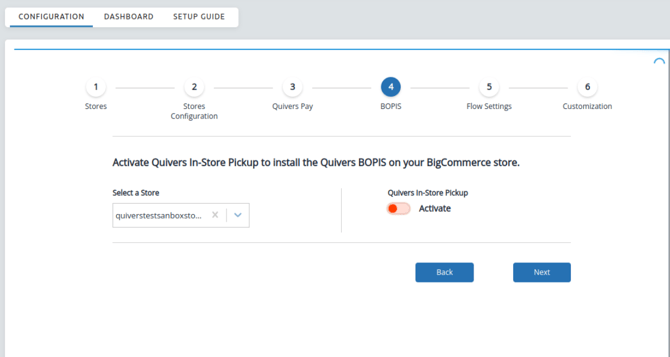
Step 4: Configure the In-Store Pickup Shipping Option
BigCommerce needs a pickup shipping option with the exact right name for BOPIS to work at checkout.
-
Open your shipping options. In your BigCommerce admin, go to Settings > Shipping > Checkout shipping options.
-
Edit your pickup shipping rule. Find your existing pickup shipping rule and click Edit.
-
Rename it. Change the display name to exactly In-Store Pickup.
-
Enable and save. Turn the option on and save.
Note: The shipping option name must be exactly In-Store Pickup. Any variation will keep it from working at checkout.
Best Practice: Test the full BOPIS flow (product page, cart, then checkout) before promoting In-Store Pickup to your customers.
Setting Up BOPIS on Demo
Use the demo environment to test the full BOPIS flow before going live on your production store. The demo setup uses separate apps from the production install.
Step 1: Install the Quivers Demo App
-
Install the demo app. Go to the Quivers Demo app on the BigCommerce App Marketplace and click Install.
-
Complete its configuration. Follow the setup in Install the Quivers Demo App for BigCommerce, and finish all configuration steps before moving on to Step 2.
Step 2: Install the Quivers In-Store Pickup Demo App
-
Open the app listing. Go to the Quivers In-Store Pickup Demo app on the BigCommerce App Marketplace and click Install.
-
Accept the terms and confirm. Check the box to confirm the usage terms and conditions, then click Confirm.
-
Check for the welcome screen. Once installed, you'll see a Welcome to Quivers In-Store Pickup App screen.
Step 3: Activate BOPIS in Quivers
-
Open the Quivers Demo app in BigCommerce. Go to Apps > My Apps and open the Quivers Demo app.
-
Open the Admin Panel. Under Quivers App Configuration, click Open Admin Panel. This opens your BigCommerce app in the Quivers Admin Panel.
-
Go to the BOPIS tab. On the Configuration tab, click Next until you reach BOPIS. Your default store is selected automatically, and the page shows whether Quivers In-Store Pickup is active for it. To check a different store, choose it from Select a Store.
-
Activate In-Store Pickup. Turn on the Quivers In-Store Pickup toggle (Activate), then continue with Next and click Save on the last tab.
Step 4: Create Test Products
Create a few products in your demo store and assign them Quivers test SKUs to enable In-Store Pickup.
-
Add products. In your BigCommerce admin, go to Products > Add Product.
-
Assign test SKUs. Create two or three products and give them SKUs from the table below.
|
Product Type |
Test SKUs |
|---|---|
|
Standard products |
bopisproduct1, bopisproduct2, bopisproduct5, bopisproduct7 |
|
Variant products |
configbopis1, configbopis2 |
Step 5: Configure the In-Store Pickup Shipping Option
-
Open your shipping options. In your BigCommerce admin, go to Settings > Shipping > Checkout shipping options.
-
Edit your pickup shipping rule. Find your existing pickup shipping rule and click Edit.
-
Rename it. Change the display name to exactly In-Store Pickup.
-
Enable and save. Turn the option on and save.
Note: The shipping option name must be exactly In-Store Pickup. Any variation will keep it from working at checkout.
Pro Tip: Your demo store is ready. Visit your storefront, open a product with one of the test SKUs, and click In-Store Pickup. At checkout, choose In-Store Pickup as the shipping method and pay with the Quivers test card. The order syncs to your Quivers Admin Panel within 3 to 5 minutes.
Ship-To-Store (STS) with BOPIS
Ship-To-Store is an optional add-on that extends BOPIS by letting customers choose a Retailer as their pickup location even when that Retailer is out of stock. Instead of fulfilling from local inventory, the item ships from a Quivers warehouse to the Retailer's store, where the customer picks it up. BOPIS works without STS; you only need it to support out-of-stock Retailer fulfillment.
How STS Works
When STS is enabled and a Retailer is out of stock:
-
The Retailer still appears as a selectable pickup option in the store selection window.
-
Their tile shows an availability message. Available in X Days means the item will be shipped to the store before pickup. If the transit time isn't known, the tile shows Available Soon instead.
-
The customer selects that Retailer and checks out as normal.
-
The item ships from an STS warehouse to the selected Retailer, who lets the customer know when it's ready for pickup.
Requirements for STS
For a Retailer to appear as a Ship-To-Store pickup option, all of the following must be in place:
- The Retailer is out of stock on the item. STS is only offered when local inventory is unavailable.
- The Retailer's connection in Quivers has Ship-To-Store enabled.
- The storefront has an STS plugin mapped and enabled in the Quivers Admin Panel.
- STS warehouses have enough stock of the item to fulfill the order.
See Quivers Ship-to-Store for how to configure STS in Quivers before using it with BigCommerce BOPIS.
Note: STS is set up at the storefront level. Contact support@quivers.com to confirm whether STS is enabled for your storefront and to get it set up.
Best Practices
- Keep Retailer inventory current. Only Retailers with stock synced in Quivers appear as pickup options. Work with your retail partners to keep inventory up to date.
- Test before going live. Run through the full BOPIS flow on the demo setup (or in sandbox mode) so you don't create live orders during testing.
- Test every variant combination. Variant selection affects which Retailers appear and how products are added to the cart.
- Prepare your retail partners. Coordinate with partner stores before launch so they're ready to receive pickup orders and notify customers when items are ready.
- Tell customers about it. Mention In-Store Pickup in emails, social posts, and on product pages so shoppers know it's available.
Frequently Asked Questions
Do I need the Quivers core app to use In-Store Pickup?
Yes. The core app must be installed, configured, and started, with its Scripts and Order Confirmation Page installed on each channel, before the In-Store Pickup app will work.
Why isn't In-Store Pickup showing on my storefront?
Check that the core app is started in the Quivers Admin Panel, In-Store Pickup is activated on the BOPIS tab, the shipping option is named exactly In-Store Pickup, and the product is in stock at a connected Retailer.
Why is the In-Store Pickup button greyed out?
The product is out of stock, or it has variants and the customer hasn't selected one yet.
Why doesn't a Retailer show up as a pickup option?
Only Retailers with current inventory synced in Quivers appear. If you use Ship-To-Store, out-of-stock Retailers can also appear when all STS requirements are met.
Do customers need to enter a shipping address for pickup orders?
Not when every item in the cart is for In-Store Pickup.
How is tax calculated on pickup orders?
From the selected store's location rather than the shipping address. In mixed carts, tax is calculated per item based on how and where it's fulfilled.
Can customers mix pickup and shipped items in one order?
Yes. BigCommerce creates a separate consignment for each fulfillment type at checkout.
Can a customer change their pickup store after adding an item to the cart?
Yes. Click Edit on the line item in the cart before checking out.
How long until a pickup order shows up in Quivers?
Orders sync to Quivers within 3 to 5 minutes.
Why does the shipping option have to be named exactly In-Store Pickup?
The app looks for that exact name at checkout. Any variation keeps In-Store Pickup from appearing as the shipping method.
I have multiple BigCommerce storefronts. Does In-Store Pickup work on all of them?
Yes. Install the In-Store Pickup components on each channel you want to offer pickup on, and make sure the core app's Scripts and Order Confirmation Page are installed on those channels too.
BigCommerce shows an Update option for the app. Should I use it?
No. Uninstall and reinstall both the core and In-Store Pickup apps instead.
Can I test BOPIS without creating live orders?
Yes. Use the demo setup with the Quivers Demo and In-Store Pickup Demo apps and the test SKUs listed in Setting Up BOPIS on Demo.
Do I need Ship-To-Store to use BOPIS?
No. STS is optional and only needed if you want out-of-stock Retailers to be available as pickup locations.
What does "Available Soon" mean on a store tile?
The store is a Ship-To-Store option and the item will be shipped there before pickup, but the transit time isn't known yet.
How do I get Ship-To-Store turned on?
STS is set up at the storefront level. Contact support@quivers.com, and see Quivers Ship-to-Store for the Quivers-side setup.