
In This Article
- Overview
- Adding to Your Cash Reward Balance
- Configuring Cash Redemptions
- Redeeming Cash Rewards
- Frequently Asked Questions
Overview
Sellers can configure a new reward type in the Ambassador Relations Portal called Cash. For this reward, you can configure a fixed point cost, cash amount, and currency — e.g. "$10 USD for 100 points." See other Program Reward options HERE.
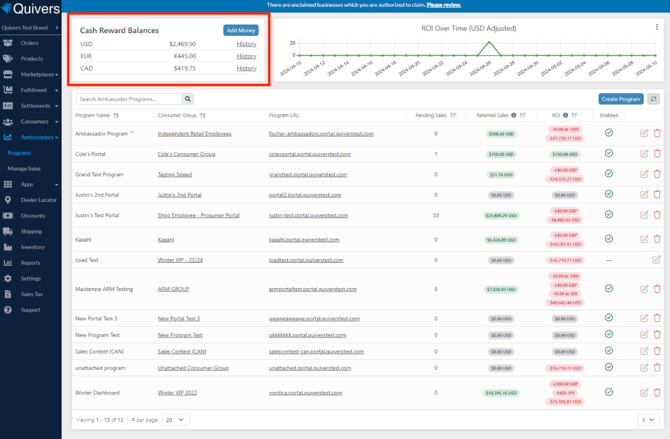
The amount of cash available for ambassadors to redeem in your program is based on a Cash Reward Balance (per currency) for your business. This balance can be viewed in the Quivers Panel under Ambassadors > Programs, towards the top.
Adding to your Cash Reward Balance
By clicking Add Money at the top of the Ambassador Programs screen, you'll be prompted to specify how much you want to add to make available for cash redemptions (USD, CAD, and EUR).

Note: The amount for the top-up must be at least "5" of any currency, and cannot exceed "10,000."
Clicking Submit will create a PayPal Invoice for the amount and open a new tab so you can pay it immediately. Two items will be shown: one for the amount you want to add (e.g., $100), and a second for the payment processing fee associated with the top-up.
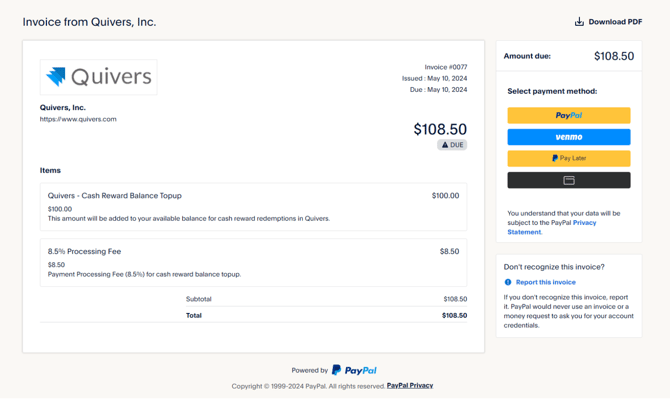
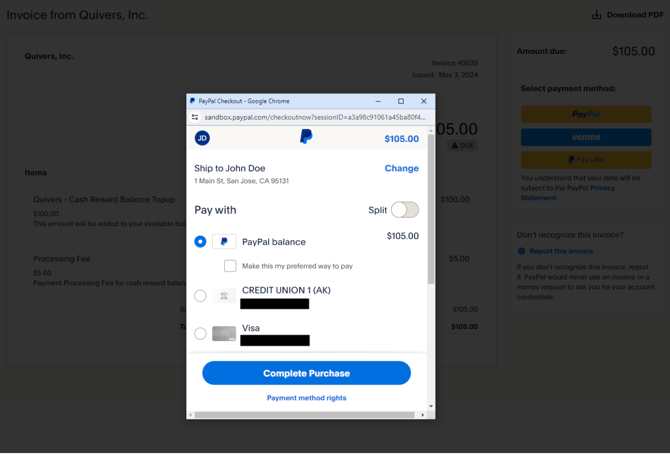
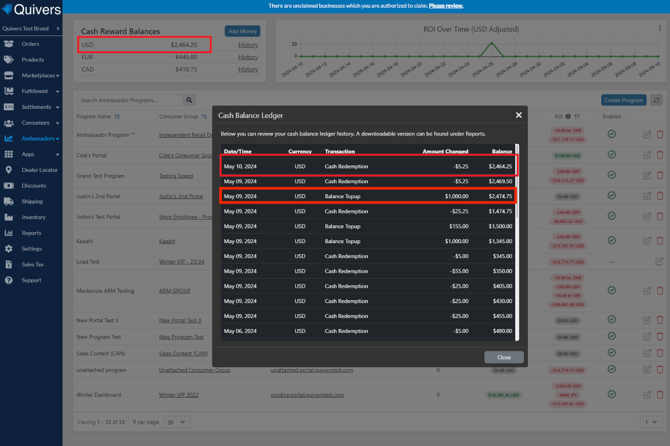
Once the invoice is paid (either immediately or later), return to the Ambassador Programs section of the Quivers Panel. By refreshing the page, or clicking the refresh icon next to "Add Money," your balance will update to reflect the newly added amount. Clicking a specific currency amount opens a dialog showing the balance history for that currency.
Configuring Cash Redemptions
Regardless of whether you've added cash yet, you can configure cash rewards for your programs. Cash rewards won't be available for redemption unless there's sufficient cash available.
- Navigate to Ambassador > Programs > [Select your program] > Rewards.
- In the same area as Point Spend Limit and similar controls, two settings manage how much cash can be redeemed for this program — either in total for the program, or per user.
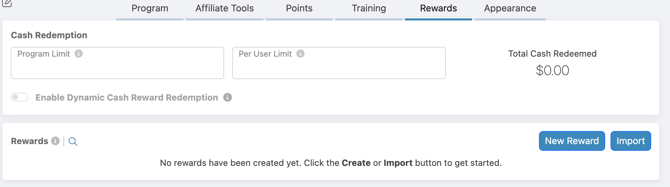
- Under the Rewards section on the same page, you can create a Cash Reward. This works like other rewards, except you specify the cash amount and currency. Cash Rewards will always deplete points.
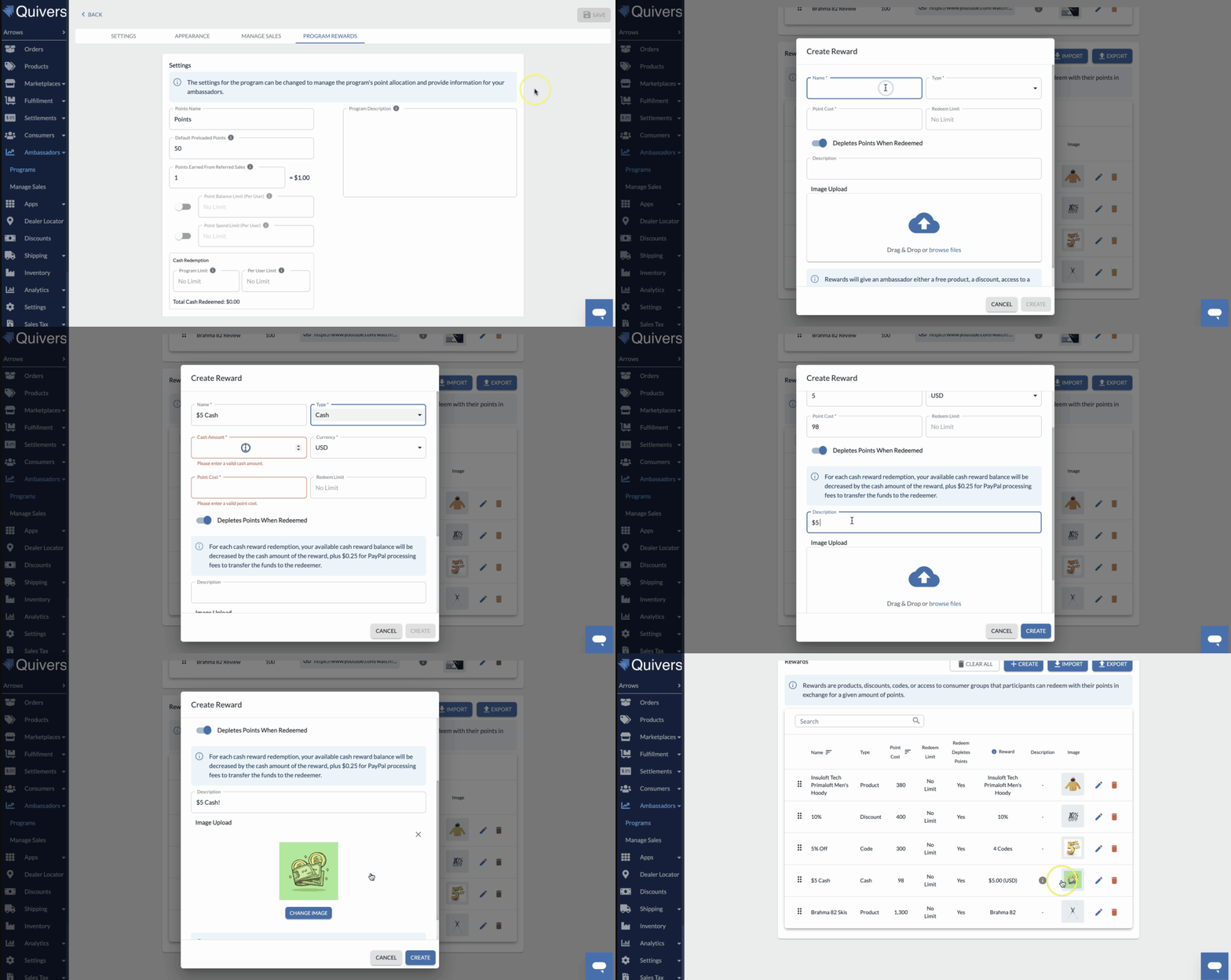
Redeeming Cash Rewards
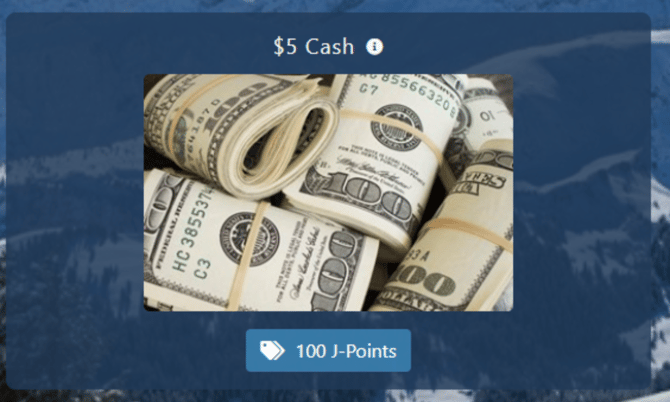
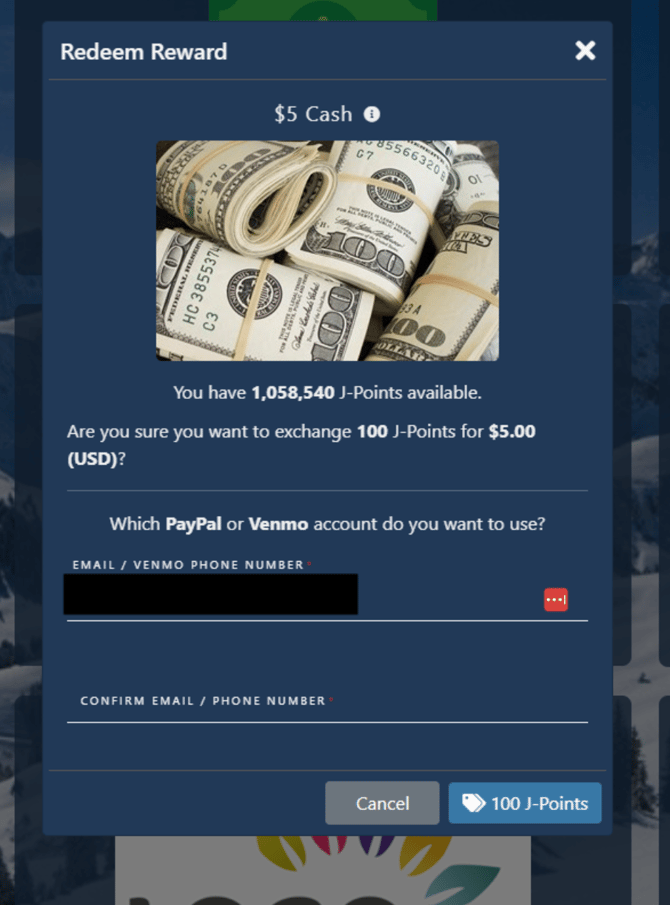
Navigate to your program URL and confirm you have sufficient points for the cash reward you want to redeem — you can redeem from either the Dashboard or the Rewards tab. Click on the points under the reward to open the Redeem Reward dialog, confirm the amount, and specify which PayPal or Venmo account to send the funds to.
![]() Choosing a Payment Method
Choosing a Payment Method
The dialog shows a single field — Email / Venmo Phone Number — rather than a separate payment method dropdown. Quivers determines where to send the funds based on what's entered:
- Enter an email address → the cash reward is sent to the PayPal account associated with that email.
- Enter a phone number → the cash reward is sent to the Venmo account associated with that number.
You'll be asked to enter the value a second time in Confirm Email / Phone Number to guard against typos, since this determines where the money is sent.
Note: If the email you enter isn't already tied to a PayPal account, PayPal will send a notification prompting the recipient to claim the funds and create an account. The recipient has 30 days to claim the funds — if they aren't claimed in that window, the funds are returned.
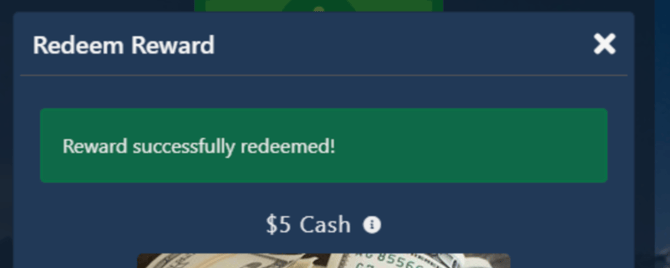
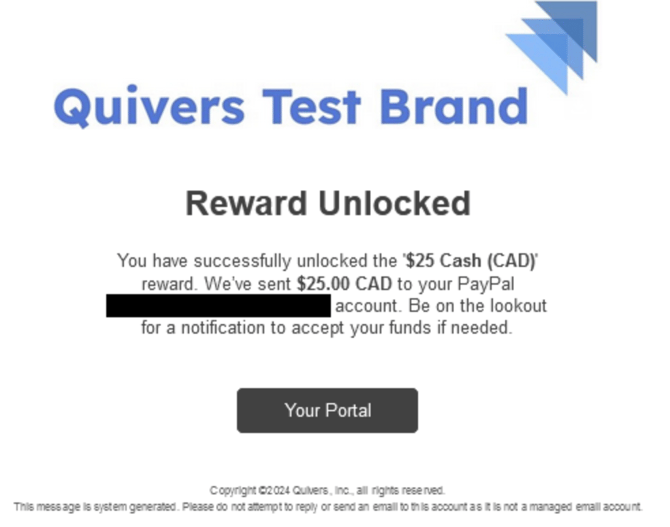
If the redemption is successful, you'll see a success message and can close the dialog. You'll also receive an email from Quivers confirming the redemption, the amount, and where it was sent.
Frequently Asked Questions
How does Quivers know whether to send my cash reward via PayPal or Venmo?
There's only one field in the redemption window — Quivers determines the payment method automatically based on what you enter. An email address routes the payment to PayPal; a phone number routes it to Venmo.
What happens if I enter an email that isn't linked to a PayPal account?
PayPal will send a notification to that email prompting the recipient to claim the funds and set up an account. They have 30 days to claim it before the funds are returned.
Can I choose PayPal or Venmo from a dropdown?
No — there's no separate selection step. The single "Email / Venmo Phone Number" field determines the payment method based on the format of what's entered.
Why do I have to enter my email or phone number twice?
The "Confirm Email / Phone Number" field is a safeguard against typos, since whatever you enter directly determines where the cash reward is sent.
What currencies can I add to my Cash Reward Balance?
USD, CAD, and EUR. Top-ups must be at least "5" of any currency and cannot exceed "10,000."
Do Cash Rewards deplete points like other rewards?
Yes. Cash Rewards will always deplete points, the same as other reward types.
Where can I see my current Cash Reward Balance?
In the Quivers Panel under Ambassadors > Programs, towards the top of the screen. Clicking a specific currency amount opens its balance history.