
Configure Multiple B2B Wholesale Storefronts per Retailer Connection
Who is this for? This article is for Sellers (brands) who use Quivers to manage B2B wholesale relationships with retailers and want to assign multiple wholesale storefronts to a single retailer connection.
Overview
Previously, each brand-retailer connection supported only one B2B wholesale storefront. With this update, you can now assign multiple B2B storefronts to a single retailer connection — giving you the flexibility to offer different pricing, product lines, or purchasing experiences to the same retailer through different storefronts.
Prerequisites
- You must have a Seller account on Quivers
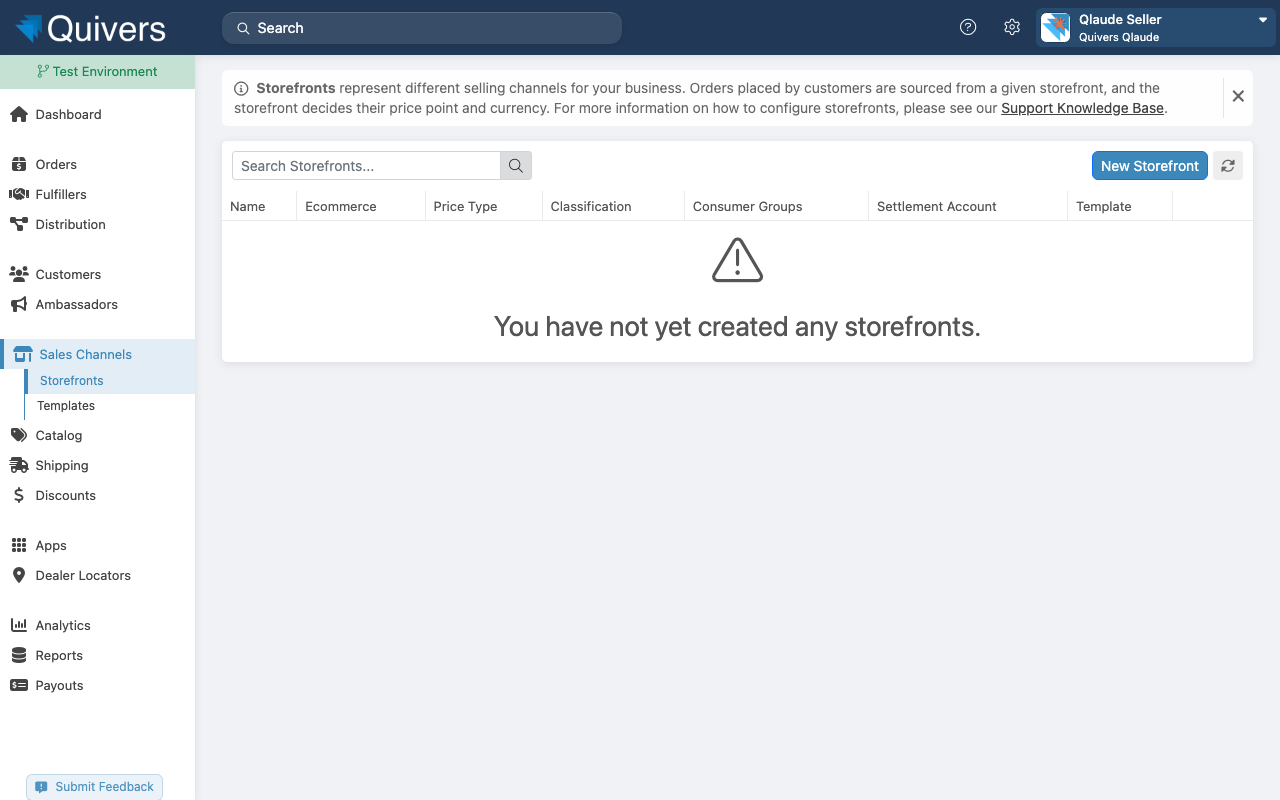
- At least one B2B storefront must be created under Sales Channels > Storefronts
- At least one retailer connection must exist under Fulfillers > My Fulfillers
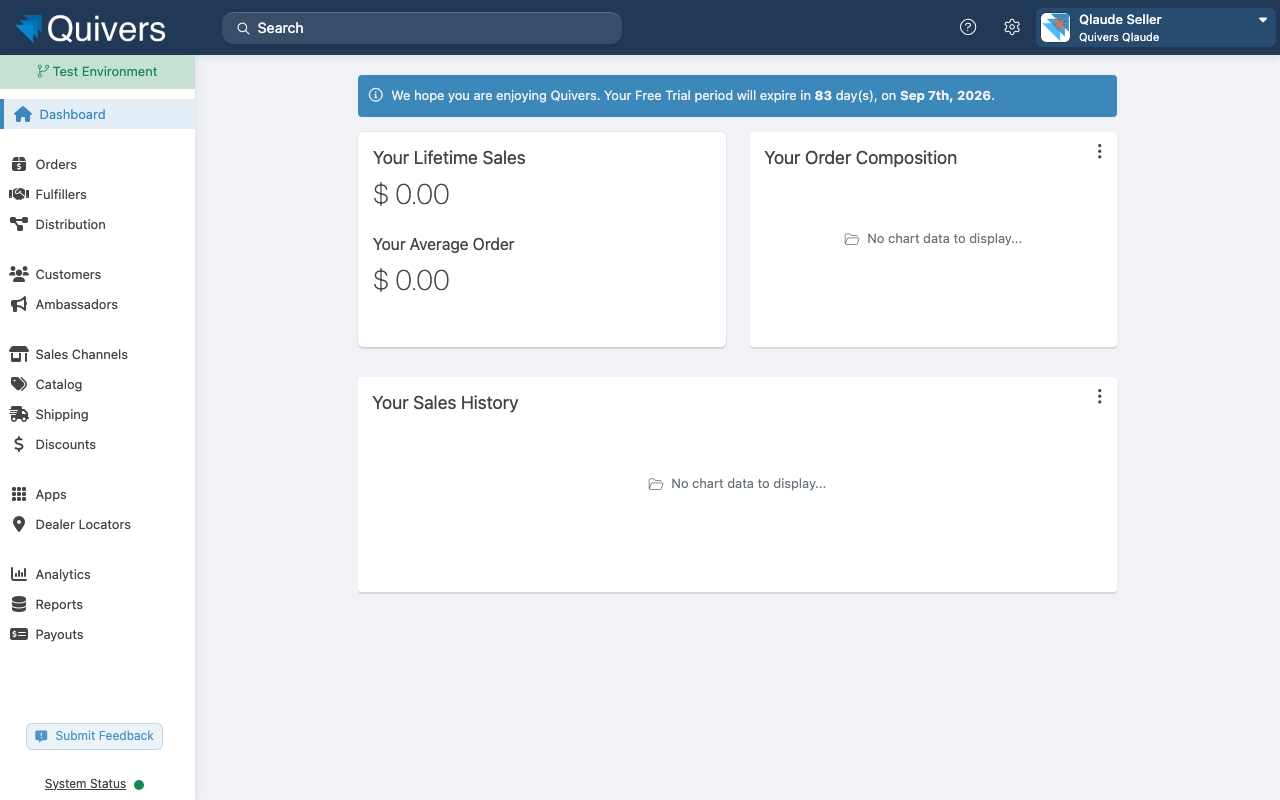
Step 1: Go to your Seller dashboard
Log in to admin.quivers.com and select your Seller account from the home screen.
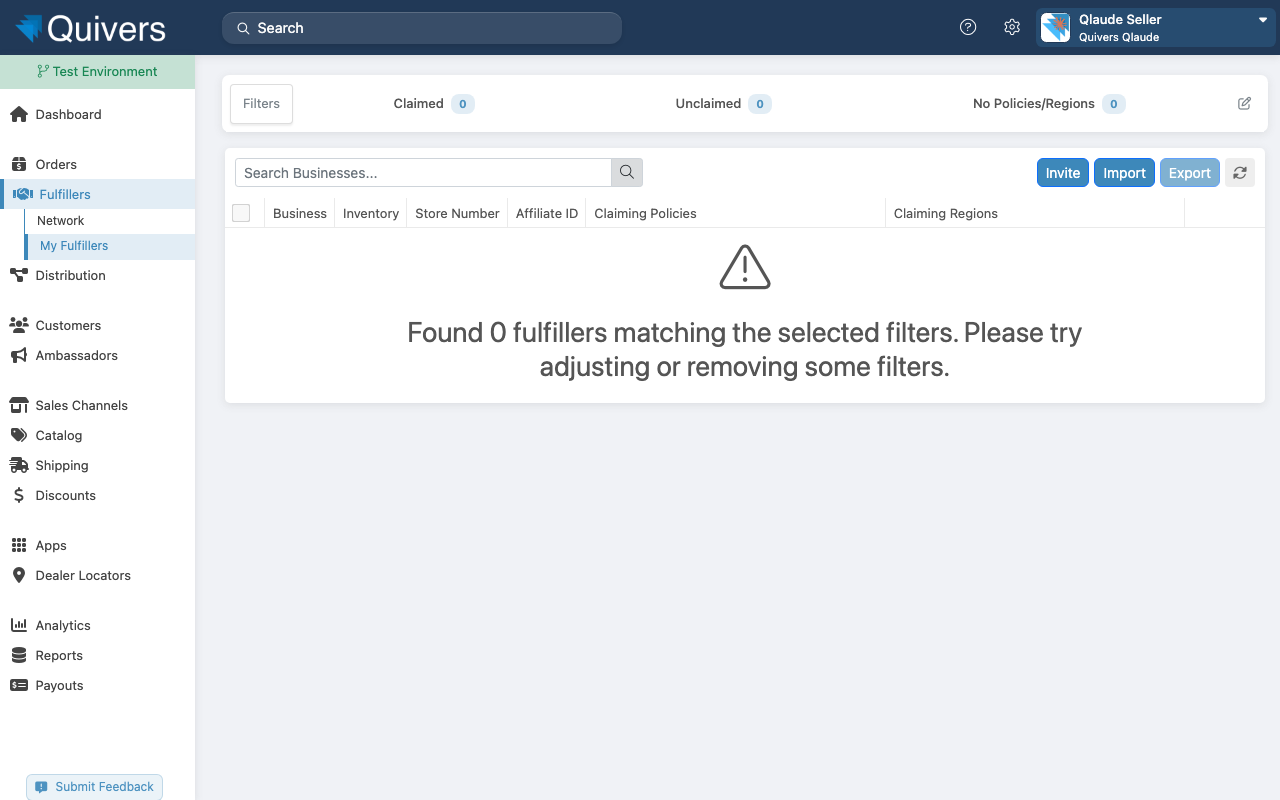
Step 2: Navigate to Fulfillers > My Fulfillers
In the left navigation, click Fulfillers, then select My Fulfillers.
Step 3: Open a retailer connection
Click on the retailer whose B2B storefront settings you want to configure.
Step 4: Add or manage B2B storefronts
Click Add Storefront and select from your existing storefronts. Repeat to assign additional storefronts.
FAQs
Can I assign different storefronts to different retailers?
Yes. Each retailer connection has its own B2B storefront list.
What happens to my existing wholesale storefront?
It has been automatically migrated and will appear as the first entry in the list.