
In This Article
- What Is Consumer-Based Pricing?
- How to Set Up Consumer-Based Pricing
- Testing Consumer-Based Pricing
- Additional Notes
What Is Consumer-Based Pricing?
Consumer-Based Pricing is a HoverCart feature that shows dynamic pricing based on the currently logged-in user and the consumer group they belong to. Instead of maintaining multiple, near-identical storefronts just to sell at different price points to different audiences, you can enable this on a single storefront and map price types to each consumer group.
How It Works
- A storefront can be configured to price products based on the price type assigned to a shopper’s consumer group.
- If a consumer belongs to more than one qualifying consumer group, they’ll see the lowest price available across those groups.
- Shoppers who aren’t part of a mapped consumer group continue to see standard, default pricing.
How to Set Up Consumer-Based Pricing
Complete the steps below in order.
Prerequisites
✓ At least one private access consumer group enabled for the storefront — required before you can turn the feature on.
Step 1: Access Storefront Details
- Go to the Quivers Panel and navigate to Sales Channels > Storefronts.
- Select the storefront you wish to configure.
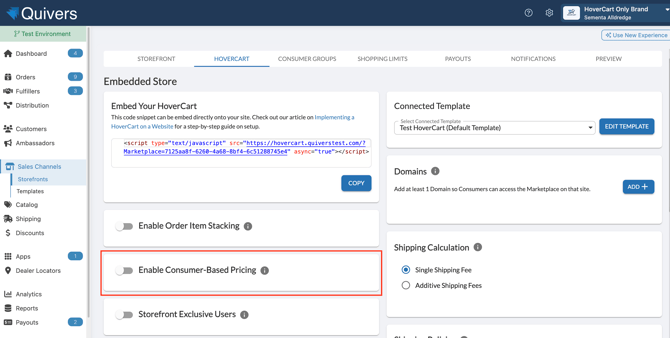
- Find the “Enable Consumer-Based Pricing” toggle under the “HoverCart” tab in the Storefront Details view, located below the “Order Stacking” option.
Step 2: Enable the Toggle
- You can only enable this toggle if there is at least one private access consumer group enabled for the storefront.
- Hover over the tooltip for more information: “If enabled, consumers in this storefront will see pricing based on the price type of the consumer group they are a part of, using the lowest price available.”
Step 3: Assign Price Types to Consumer Groups
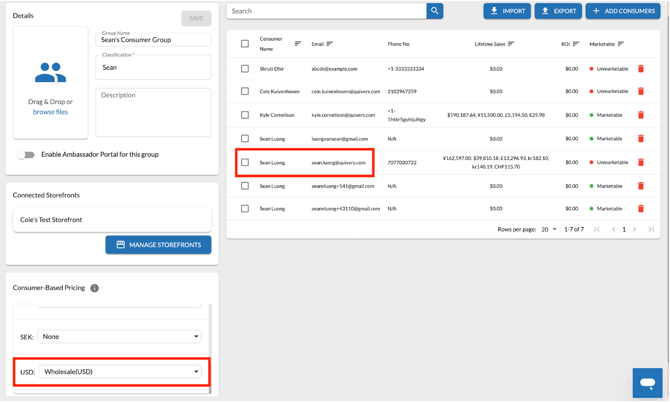
- Navigate to Consumers > Consumer Groups and select the consumer group associated with the Consumer-Based Pricing storefront.
- Assign a price type to the consumer group. Only one price type can be assigned per currency for each consumer group — use the dropdown menu to select the appropriate price type for each currency.
Testing Consumer-Based Pricing
Before rolling this out to shoppers, confirm your setup and walk through the testing steps below.
Ensure Correct Setup:
- The storefront must have “Enable Consumer-Based Pricing” toggled on.
- The test user must be part of a consumer group for the business owning the HoverCart.
- The appropriate price types must be mapped to the consumer group.
- Products/variants in the storefront must have price values set for the assigned price types.
- We recommend using a distinct “special price” for consumer group-mapped prices, to visually differentiate them from the default price.
Testing Steps:
-
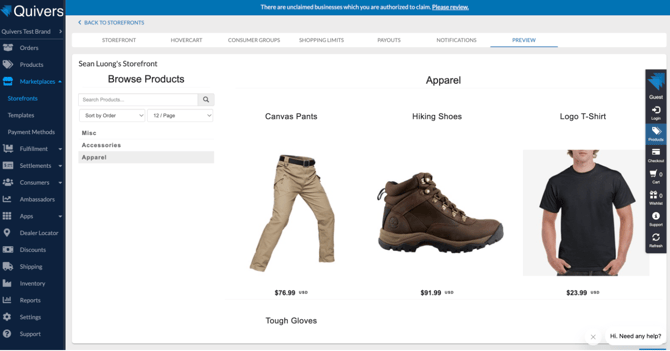
Initial view: Clear your cache and navigate to the test storefront without logging in. Confirm that normal pricing based on the default Price Type is displayed.
-
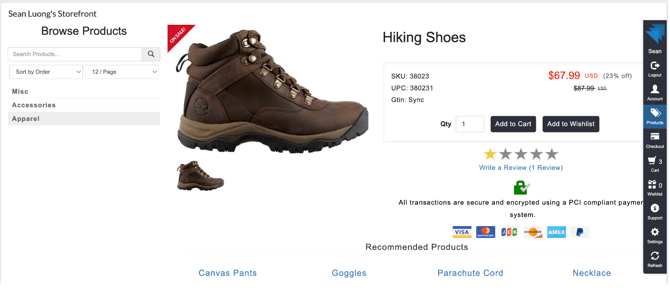
Login and verify pricing: Log in to the storefront as the test user who is part of the consumer group (we recommend using a different email than your admin user email). Confirm that pricing updates to reflect the mapped price type for the consumer group, checking products, search results, and product grids.
-
Cart and purchase: Add items to the cart and verify that the correct special prices are reflected. Optionally, complete a purchase and confirm the order uses consumer-based pricing in the Quivers Panel — then cancel the order (do not mark it as shipped).
-
Log out and verify: Log out of HoverCart and confirm prices revert to the original default prices.
Note: Also test with a user who is not part of the consumer group, to confirm pricing does not change from the default for them.
Additional Notes
Note: If changes are made to the price types mapped to a consumer group while a consumer is logged into HoverCart, product prices may not update immediately — but should reflect correctly in the cart.
Note: Ensure the correct currency price type is always applied, especially in multi-currency environments.