Skip to content
English
  • There are no suggestions because the search field is empty.

Routing & Assignment

This article explains how Quivers routes and assigns your order items to Retailers — covering Auto-Assignment, Beaconing timers, additional rules, claiming restrictions, hold statuses, and sending items directly to a specific Retailer.

In This Article

Overview

Routing & Assignment controls how orders placed on your Storefronts reach your connected Retailers. With the right setup, you can balance fulfillment speed, fairness across your Retailer network, and inventory levels — while making sure customers receive their products quickly.

This article covers every setting on the Routing & Assignment screen, plus how to route individual items by hand from the Order Details Panel when you need to step in.

Note: The Routing & Assignment screen uses Fulfiller — Quivers' official platform term — in several setting names (for example, Fulfiller Claiming Restrictions and Maximum Fulfiller Inventory Age). Fulfiller and Retailer refer to the same role. This article uses Retailer, except when quoting a UI label exactly.

Key Terms

Term

What It Means

Available

The item has been offered to a Retailer, who can choose whether to claim it.

Claim

A Retailer accepts responsibility for fulfilling an item — manually, or automatically if they have Auto-Claim turned on.

Assign

The item is given directly to a Retailer with no claim step. The Retailer doesn't choose whether to take it.

Auto-Assignment

Assigns items to a Retailer immediately when the order is created, based on inventory and location.

Beaconing

Offers items to groups of Retailers in a timed sequence, until someone claims them.

Favored

Retailers marked as Favored in a Claiming Policy. They can be prioritized in both Auto-Assignment and Beaconing.

Territory

A predefined geographic area (Claiming Region) used by the Territory timer.

Fresh / Stale inventory

Fresh inventory has been updated recently enough for Quivers to rely on it. Stale inventory hasn't been updated recently and is flagged as such.

How Routing Works

When a new order comes in, Quivers works through your settings in this order until the item finds a Retailer:

  1. Affiliate Assignment — if enabled and the order carries an affiliate code, Quivers first tries to assign the item to a Retailer with a matching affiliate code. This takes priority over the usual assignment rules.
  2. Auto-Assignment — if enabled, Quivers assigns the item immediately to a qualifying Retailer based on your chosen Auto-Assignment Type.
  3. Beaconing timers — if Auto-Assignment is off, or no Retailer qualifies, Quivers offers the item through your timers in sequence: Seller First ➔ Favored ➔ Local ➔ Territory ➔ Last Chance.
  4. Automatic Order Resend — if enabled, unclaimed items run through the timers a second time.

At any point, you can step in from the Order Details Panel to send an item to a specific Retailer or re-publish it to all eligible Retailers — see Sending Items Directly to a Retailer, below.

Auto-Assignment

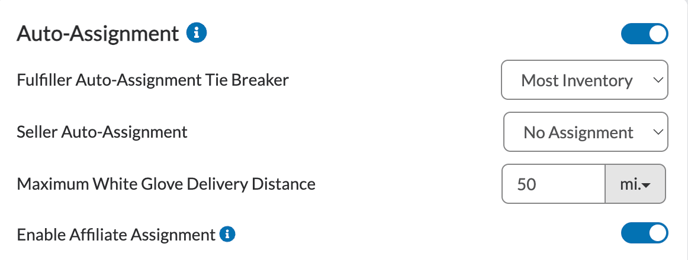
When Auto-Assignment is enabled, Quivers assigns order items to a Retailer immediately at order creation, based on each Retailer's inventory and location relative to the customer.

Auto-Assignment Type

Once Auto-Assignment is on, choose how Quivers picks a Retailer:

Option

How It Assigns

Most Inventory

To the Retailer with the largest stock of the item.

Least Inventory

To the Retailer with the smallest stock of the item.

Most Local

To the Retailer closest to the shipping address.

Round Robin

Rotates evenly among qualifying Retailers.

Seller Auto-Assignment

Choose how your own business is included in Auto-Assignment:

Option

What It Does

No Assignment

You (the Seller) are not included in Auto-Assignment.

Seller First

Items are assigned to you first if you have inventory.

Seller Last

Quivers checks whether any Retailer has inventory before assigning the item to you.

After Favored

Favored Retailers are considered first; if none qualify, the item is assigned to you.

White Glove Delivery & Affiliate Assignment

  • Maximum White Glove Delivery Distance — the maximum distance, in miles, you're willing to deliver white glove orders.
  • Enable Affiliate Assignment — when enabled, orders with an affiliate code are first assigned to Retailers whose Retailer connection carries a matching affiliate code. This takes priority over the usual assignment rules.
 Screenshot 2025-09-30 at 3.45.22 PM

Best Practice: Let your Retailers know they need to add inventory to Quivers before you enable Auto-Assignment. Without inventory data, no Retailer will qualify and items will fall through to your Beaconing timers instead.

Pro Tip: Pair Auto-Assignment with a Maximum Fulfiller Inventory Age so items only go to Retailers whose inventory is up to date. See Additional Rules, below.

Beaconing & Prioritization

If Auto-Assignment is off — or it runs but no Retailer qualifies — Quivers uses Beaconing to route the item. Beaconing uses configurable timers to decide which Retailers are offered the item, and when.

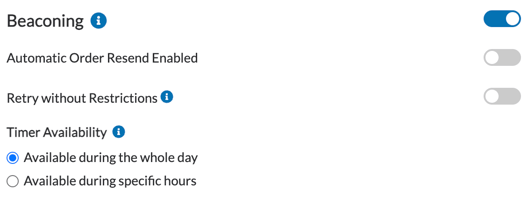
Beaconing Settings

  • Automatic Order Resend — re-sends unclaimed items through the timers a second time, giving Retailers another chance to claim.
  • Retry without Restrictions — when enabled, your Fulfiller Claiming Restrictions are ignored when an Automatic Order Resend occurs.
  • Timer Availability — controls when timers run:
    • Available during the whole day — timers run around the clock.
    • Available during specific hours — timers start once your start time is reached, pause at your end time, and resume the following day.

Screenshot 2025-09-30 at 4.00.04 PM

Prioritization Timers

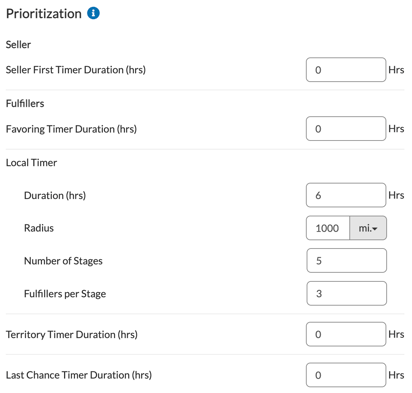
Each timer defines a window in which a specific group of Retailers is offered the item. Timers run in the order shown below.

Timer

Who Sees the Item

Seller First Timer Duration (hrs)

You (the Seller) see the item before any Retailer.

Favored Timer Duration (hrs)

Retailers marked as Favored in your Claiming Policy. See Claiming Policies.

Local Timer

Retailers closest to the shipping address, configured by Duration (hrs), Radius, Number of Stages, and Fulfillers per Stage.

Territory Timer Duration (hrs)

Retailers in the predefined territory (Claiming Region) for the shipping address.

Last Chance Timer Duration (hrs)

All remaining eligible Retailers not already notified.

Screenshot 2025-09-30 at 4.13.26 PM

Best Practice: Set the Last Chance Timer Duration to at least 1 hour, so your full Retailer network has a real opportunity to claim before the timers end.

Additional Rules

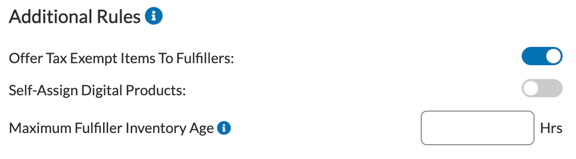
This section manages additional rules that apply to how items are offered and assigned.

Setting

What It Does

Offer Tax Exempt Items To Fulfillers

Controls whether items on tax-exempt orders are offered to Retailers. When off, those items are not offered to Retailers.

Self-Assign Digital Products

Automatically assigns digital products to you, the Seller.

Maximum Fulfiller Inventory Age

Works with Auto-Assignment. A Retailer's inventory must have been updated within this timeframe for them to be considered. Optional — if left blank, inventory age isn't considered.

Screenshot 2025-09-30 at 4.36.37 PM

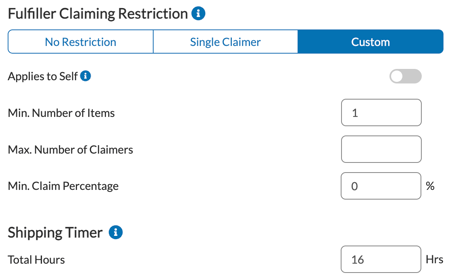
Fulfiller Claiming Restrictions

This setting controls how Retailers can claim the items within an order, helping you balance flexibility with the customer's experience.

Claiming Restriction Options

Option

How It Works

No Restriction

Each item in an order is its own claiming opportunity. An order with 3 items could be fulfilled by 3 different Retailers (1 item each).

Single Claimer

Only one Retailer can claim the entire order, and they must be able to fulfill every item — otherwise they can't claim it.

Custom

Flexible, rule-based claiming using Min. Number of Items, Max. Number of Claimers, and Min. Claim Percentage.

Example (Custom): for orders with 5 or more items, you can limit claiming to 2 Retailers. This prevents a single customer order from arriving in too many separate shipments.

  • Applies to Self — when toggled on, your claiming restrictions also apply to you, the Seller.

Shipping Timer

The Shipping Timer tracks how quickly Retailers ship after claiming an item.

  • Purpose — adds a Shipment Overdue badge to orders that haven't shipped within your timeframe.
  • Configuration — set in hours. A minimum of 24 hours is recommended, but 36–48 hours is often more practical, since the timer runs seven days a week, including weekends.

Note: When the Shipping Timer runs out, the item stays claimed by the Retailer. The Shipment Overdue badge flags slow shipments for follow-up and appears in reporting — it doesn't unclaim the item or penalize the Retailer.

Screenshot 2025-09-30 at 4.45.44 PM


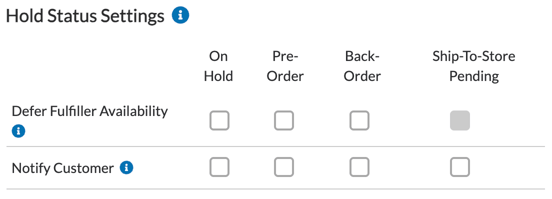
Hold Status Settings

Hold statuses can be set per item to manage fulfillment and customer expectations.

Status

Meaning

Pre-Order

The item was purchased before its release.

Back-Order

The item will be fulfilled once stock is replenished.

On-Hold

Fulfillment of the item is temporarily paused.

Configuration Options

  • Fulfiller Notification toggle
    • On (blue) — Retailers are not notified about Pre-Order, Back-Order, or On-Hold items until the status is cleared.
    • Off — Retailers are notified immediately, even if the item isn't ready to ship.
  • Customer Notification toggle
    • On — customers are notified when an item's hold status changes. For example, when a Pre-Order item is released and ready for processing, the customer receives an email update.

Screenshot 2025-09-30 at 4.51.09 PM

Frequently Asked Questions

What's the difference between assigning an item and a Retailer claiming it?

When an item is assigned, it goes straight to the Retailer — they don't choose whether to take it. When an item is Available, the Retailer decides whether to claim it (manually, or automatically with Auto-Claim).

In what order does Quivers try to route an item?

Affiliate Assignment (if enabled) comes first, then Auto-Assignment, then the Beaconing timers in the order Seller First ➔ Favored ➔ Local ➔ Territory ➔ Last Chance. If Automatic Order Resend is on, unclaimed items run through the timers a second time.

What happens if Auto-Assignment is on but no Retailer qualifies?

The item falls through to your Beaconing timers, which offer it to Retailers in sequence until someone claims it.

Why aren't my orders being auto-assigned?

The most common cause is missing or out-of-date Retailer inventory. If you've set a Maximum Fulfiller Inventory Age, Retailers whose inventory hasn't been updated within that window won't be considered. Check that your Retailers have inventory in Quivers and are updating it regularly.

Which Auto-Assignment Type should I choose?

It depends on your priority: Most Local favors delivery speed, Round Robin spreads orders evenly across your network, and Most Inventory or Least Inventory routes based on stock levels.

What's the difference between Seller First in Seller Auto-Assignment and the Seller First Timer Duration?

Seller First in Seller Auto-Assignment assigns the item to you immediately if you have inventory. The Seller First Timer Duration is a Beaconing window where you see the item before any Retailer does, and can claim it during that time.

What does Enable Affiliate Assignment do?

Orders with an affiliate code are first assigned to Retailers whose Retailer connection has a matching affiliate code. This takes priority over your usual assignment rules.

Do my timers keep running overnight?

Only if Timer Availability is set to Available during the whole day. With Available during specific hours, timers pause at your end time and resume the following day.

What does Retry without Restrictions do?

When an Automatic Order Resend happens, it ignores your Fulfiller Claiming Restrictions, so more Retailers can claim on the second pass.

Where do Favored Retailers and Territories come from?

Favored Retailers are set in your Claiming Policies, and Territories come from your Claiming Regions. See Claiming Policies.

What happens if I leave Maximum Fulfiller Inventory Age blank?

Inventory age isn't considered — any Retailer with inventory can qualify for Auto-Assignment, no matter when they last updated it.

Can one order be fulfilled by several Retailers?

Yes, with No Restriction, where each item is its own claiming opportunity. Single Claimer requires one Retailer to fulfill the whole order, and Custom lets you cap the number of Retailers per order.

Do claiming restrictions apply to me as the Seller?

Only if Applies to Self is toggled on.

Does the Shipment Overdue badge unclaim the item?

No. The item stays claimed by the Retailer. The badge only flags slow shipments for follow-up and appears in reporting.

Will Retailers be notified about items on hold?

Not while the Fulfiller Notification toggle is on — Retailers are notified once the Pre-Order, Back-Order, or On-Hold status is cleared. With the toggle off, they're notified immediately.

Will customers hear about hold status changes?

Yes, if the Customer Notification toggle is on. For example, a customer who bought a Pre-Order item gets an email when it's released and ready for processing.

Is "Fulfiller" the same as "Retailer"?

Yes. Fulfiller is Quivers' official platform term and appears in several setting names on this screen. Retailer refers to the same role.

Need Help?

Our support team is here to help you get the most out of Quivers.

Email Support
support@quivers.com
We typically respond within 24 hours
Create a Ticket
Submit a support request →
Track your issue through to resolution