
In This Article
Overview
Shopify Inventory automates syncing your inventory positions into Quivers directly from your Shopify store, so your stock levels stay current without manual updates. You can install and authorize the app either from your Quivers Retailer Panel or directly from the Shopify App Store — both connect your store the same way, using Shopify's secure sign-in, so there's no need to create a custom app or manage an access token yourself.
How It Works
In order to use this app, you must have an active Shopify account. Choose whichever installation path below is more convenient — both connect your store the same way.
Installation From Quivers
- Open the Quivers Retailer Panel, go to "Apps" in the left-hand menu, and select "App Marketplace."
- Locate Shopify Inventory and click "Add App" to add it to your business on Quivers.
- Once the app has been added, you'll be given the option to authenticate your Shopify account.
- Follow the on-screen instructions to authenticate. This opens a window where you can click "Install." Enter your Shopify login credentials if required, and sign in.
- This authorizes Quivers to pull your inventory positions from Shopify.
- You should see a "Connection Successful" message on your app details view.
- Select your Shopify store location from the dropdown under the Configuration tab, then click Save. This tells Quivers to start pulling your inventory positions from Shopify.
- Anytime you need to refresh your inventory positions, click "Refresh All Inventory."
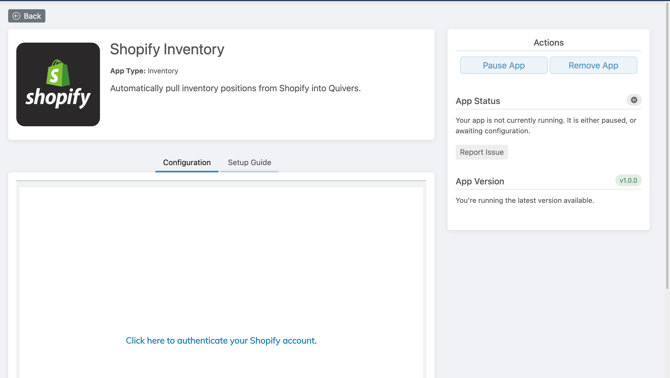
Shopify Inventory app card in the Quivers Retailer Panel, with the Shopify authentication link on the Configuration tab
Installation From the Shopify App Store
- Search for "Quivers Inventory Connect" in the Shopify App Store and click "Get App."
- You'll be given the option to authenticate your Shopify account.
- Follow the on-screen instructions to authenticate. This opens a pop-up window where you can enter your Shopify login credentials; sign in through this pop-up.
- After signing in, choose your business under "Select your business" (required if you haven't already added the Shopify Inventory App to Quivers). This adds the app to your Quivers business so it can pull your inventory positions.
- Click "Install App."
- You should see a "Connection Successful" message on your app details view.
- Select your Shopify store location from the dropdown under the Configuration tab, then click Save. This tells Quivers to start pulling your inventory positions from Shopify.
- Anytime you need to refresh your inventory positions, click "Refresh All Inventory."
Note: If you previously set up Shopify Inventory using a manually created private app and access token, that connection keeps working as-is — you don't need to redo anything. You'll only go through the steps above if you remove the app from Quivers and need to reconnect.
Note: Quivers only accepts inventory positions that have a Barcode value; positions based on SKU or other identifiers are not synced. The Barcode is the only reliable way to match your inventory position to the correct product.
Note: Depending on how many inventory positions are in your Shopify store, the initial sync can take some time. Once your positions are pulled in, they'll continue to update on a regular schedule.
Frequently Asked Questions
How can I check whether my inventory is syncing?
Navigate to the "Dashboard" in your Quivers Shopify Inventory App; this shows you the progress of your inventory syncing.
Why is it taking so long for my inventory to start syncing?
Refreshing all inventory can be a lengthy process, especially for larger catalogs, so this may take a while the first time. If there's no progress after a few hours, check your App Status or contact our Support Team.
I already set up Shopify Inventory using a private app and access token — do I need to switch to the new setup?
No. Connections made through a private app continue to sync normally. You'd only use the authentication flow above if you remove the app and need to reconnect, since new installs and reconnections now go through Shopify sign-in rather than a manually created private app.
Why isn't a specific product syncing?
Quivers only pulls in inventory positions that have a Barcode value. If a product is missing a barcode in Shopify, it won't sync — add a barcode to it in Shopify and it will be picked up on the next refresh.
Does it matter whether I install from Quivers or from the Shopify App Store?
No — both paths connect your store the same way. Use whichever is more convenient: start from the App Marketplace inside your Quivers Retailer Panel, or install directly from the Shopify App Store.