
In This Article
- Overview
- The Dashboard
- Left Menu Navigation
- Top Right Menu
- Quivers on the Go (Mobile App)
- Frequently Asked Questions
Overview
Welcome to the Quivers Retailer Panel! This is where you'll process all your orders, update inventory, connect with Sellers, and access your reporting data. Everything covered in this hub happens somewhere inside this panel.
Note: Quivers' own platform documentation sometimes refers to this same panel as the Fulfiller Panel — Fulfiller is Quivers' official term for your role. This hub uses Retailer Panel throughout, but the two names refer to the same place.
The Dashboard
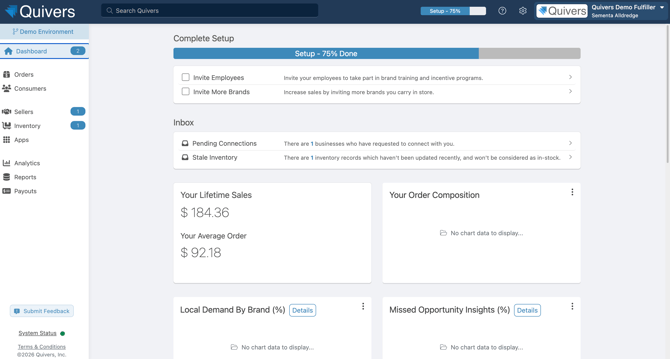
When you log in, you land on the Dashboard, which surfaces the information that matters most day to day: an inbox of items needing your attention (orders to claim, holds to resolve, and similar), plus key reporting at a glance. Your Onboarding Wizard also lives here until your setup is complete.
Left Menu Navigation
- Orders — view, claim, ship, and process returns for your orders. See Orders in Quivers for the full walkthrough.
- Consumers — customer records generated from the orders you've fulfilled.
- Sellers — connect with brands, and manage your existing Seller connections. See Connecting with Sellers for the full how-to.
- Inventory — upload and manage the stock you have available to fulfill.
- Apps — browse and install integrations (POS systems, inventory feeds, and more) from the App Marketplace.
- Analytics — reports and downloadable data on your order fulfillment performance.
- Reports — run and schedule recurring reports for delivery.
- Payouts — review payment details and settlement history.
Top Right Menu
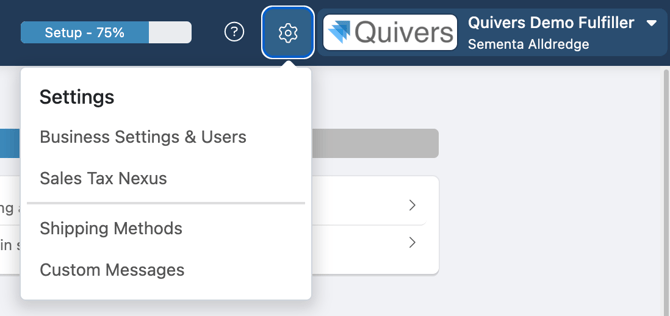
- Support (? icon) — access help resources and live chat without leaving the panel.
- Settings (gear icon) — update business details, sales tax, shipping methods, and team members.
- User Settings — manage your notification preferences and two-factor authentication.
Quivers on the Go (Mobile App)
Claim and manage orders away from your desk with the Quivers mobile app, available on the App Store and Google Play. It's especially useful for retail staff on the sales floor who need to claim time-sensitive orders quickly.
Frequently Asked Questions
Where do I go to update my business details, like my logo or store hours?
Settings (gear icon, top right) — see the Setup Checklist for the full list of what to update there.
Where do I connect with a new brand?
The Sellers tab in the left menu.
Where can I see how much I've been paid, and when my next payout is coming?
The Payouts tab in the left menu, and in more detail in Paylution.
Can I customize what shows on my Dashboard?
Yes — the Dashboard view can be adjusted to prioritize the information most relevant to your business.
Do I need the mobile app, or is the web panel enough?
The web panel has full functionality. The mobile app is optional and best suited for claiming orders quickly while away from a computer.