
In This Article
- What Is This For?
- Before You Start
- Setting Up the Discount
- Fulfillment Note
- Frequently Asked Questions
What Is This For?
This walkthrough sets up a discount that waives shipping on a specific set of products, but only when a customer enters a discount code at checkout — useful for a coupon-gated free-shipping promotion, rather than one that applies automatically to everyone.
Before You Start
This is a Product Discount configured with the Free Shipping option and at least one discount code. If you'd rather offer free shipping automatically (no code required), or scope it to an entire category instead of specific products, see How to Create a Product Discount or How to Create a Category Discount.
Helpful Tip: For more detail on any of the basics referenced in the steps below — Codes, Duration, Bypass Connections, Discount Requires Code, or Limits — see How to Create a Discount.
Note: Since this walkthrough depends on the customer entering a code, make sure Discount Requires Code is turned On at the top of the Edit Discount screen once you've added your code(s) below — otherwise the free shipping could apply automatically instead of only to customers who enter the code.
Setting Up the Discount
- Navigate to Discounts in the left-hand menu of your Quivers Panel.
- Click the blue Add Discount button in the upper right-hand corner; this opens a pop-up with a single field, Discount Name. Name your discount and click Add Discount to save.
- Once saved, click the blue pencil icon to the right of the new discount name to edit it.
- On the Edit Discount screen, fill out each of the following sections.
Codes
Click the gray Add Codes button and enter the coupon name in the Discount Code field. You can also set a Usage Limit to restrict how many times a single customer can apply it. Click Add Code to save.

Duration
Set the timeframe during which the code is valid. After the end date, the code will no longer work.

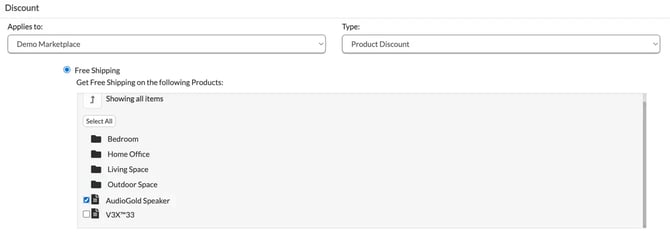
Discount
- Applies To — select the Marketplace/Storefront where this discount should be valid.
- Discount Type — select Free Shipping, then check off each product this discount should apply to using the checkboxes in the gray box that appears.
Limits
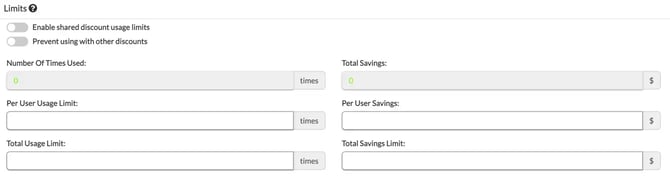
Apply any additional restrictions you'd like:
- Enable shared discount usage limits — links this discount to other discounts you select, so all of them share a single per-user usage limit. See the Limits section of How to Create a Discount for details on how this pool behaves.
- Prevent using with other Discounts — yes/no, controls whether this discount can be combined with others.
- Per User Usage Limit — limits how many times a single customer may use this discount.
- Total Usage Limit — limits how many times the discount can be used in total.
- Per User Savings — limits how much a single customer can have discounted on an order.
- Total Savings Limit — limits how much a single coupon can discount an order.
Note: Don't combine Prevent Using with Other Discounts with a shared usage-limit pool on the same discount — the two settings can interfere with each other.
Once all sections are filled out, your settings save automatically and the discount becomes available for customers to use.
Fulfillment Note
By default, orders using this discount are distributed to your Retailers/Fulfillers as usual. If you'd rather keep orders using this free-shipping code exclusive to you as the seller, turn on the Bypass Connections toggle in the upper right-hand corner of the Discount screen. See How to Create a Discount for more on this setting.
Frequently Asked Questions
Q: Does this discount apply automatically, or does the customer need to do something?
A: The customer must enter the discount code at checkout for the free shipping to apply. If you want free shipping to apply automatically instead, don't add a code — see How to Create a Product Discount.
Q: Can I limit this to a handful of products instead of my whole catalog?
A: Yes — in the Discount section, after selecting Free Shipping, check off only the specific products you want the offer to cover.
Q: Will orders using this code still go to my Fulfillers?
A: Yes, by default. If you'd rather keep orders using this code exclusive to you as the seller instead of your retailer network, turn on the Bypass Connections toggle.