
In This Article
- What Is a Bundle Discount?
- Before You Start
- Setting Up a Bundle Discount
- Frequently Asked Questions
- Need Help?
What Is a Bundle Discount?
A Bundle Discount applies a discount to a bundle of products — a % or $ amount off, or a fixed total cost — when the cart contains a qualifying combination of items.
How It's Different from a Category Discount
A Category Discount triggers when the cart contains items from any of its selected categories individually. A Bundle Discount is stricter: for each category you select, you set a Lower and Upper Quantity Threshold, and the customer must buy a quantity within that range from every selected category to trigger the discount.
Each category's range is independent of the others — for example, in the same bundle, Category A might require 1–3 items while Category B requires 2–7.
Before You Start
Bundle is one of five Discount Types available in Quivers. Before configuring the steps below, complete the shared setup steps — naming the discount, Codes, Duration, Bypass Connections, and selecting your Storefront — described in How to Create a Discount.
Helpful Tip: For more detail on any of these basics — Codes, Duration, Bypass Connections, Discount Requires Code, or Limits — see How to Create a Discount.
Note: Want this discount to share a usage limit with other discounts, or combine it with Prevent Using with Other Discounts? See the Limits section of How to Create a Discount — those two settings can conflict with each other, so it's worth reading before you configure either one.
Setting Up a Bundle Discount
After selecting Bundle as the Discount Type and choosing your Storefront, you'll use a category picker similar to the one on a Category Discount. Checking a category reveals two additional fields for it — a Lower Quantity Threshold and an Upper Quantity Threshold — where you set the minimum and maximum quantity required from that category. These threshold fields appear for either configuration below, and each category you check keeps its own independent range.
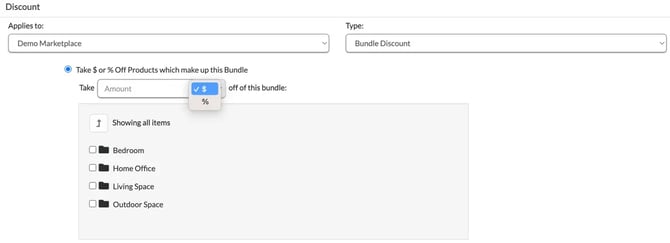
Take $ or % Off Products Which Make Up This Bundle
- Select the "Take $ or % Off Products which make up this Bundle" option.
- Enter the Take amount and choose whether it's a $ or % discount off of this bundle.
- Check off each Category that should be part of the bundle, and for each one, set its Lower and Upper Quantity Threshold.
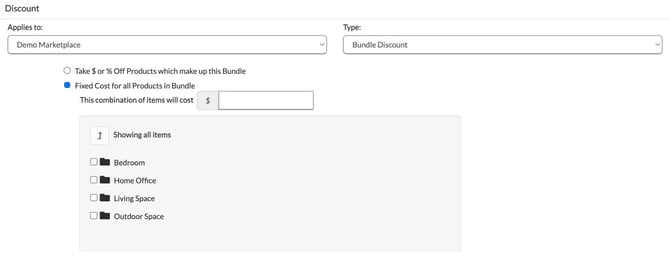
Fixed Cost for All Products in Bundle
- Select the "Fixed Cost for all Products in Bundle" option.
- Enter the dollar amount next to "This combination of items will cost." This is always a flat dollar amount, not a percentage.
- Check off each Category that should be part of the bundle, and for each one, set its Lower and Upper Quantity Threshold.
Note: Because a Bundle Discount requires a specific combination of items across categories, double-check your quantity ranges per category before publishing — a range that's too narrow may prevent the discount from ever triggering, while one that's too broad may apply it more often than intended.
Frequently Asked Questions
Q: How is a Bundle Discount different from an Order Discount?
A: An Order Discount looks at the order's total price or quantity as a whole. A Bundle Discount specifically requires a combination of products from each of several selected categories. See How to Create an Order Discount.
Q: Can a Bundle Discount be a fixed price instead of a % or $ off?
A: Yes — choose the "Fixed Cost for all Products in Bundle" option and enter the price you want the qualifying combination to cost, rather than discounting off the original total.
Q: Do all the categories in a bundle need the same quantity range?
A: No — each category you check has its own Lower and Upper Quantity Threshold, so you can require different quantities from different categories within the same bundle.