
In This Article
- What Is a Category Discount?
- Before You Start
- Setting Up a Category Discount
- Frequently Asked Questions
What Is a Category Discount?
A Category Discount applies when the cart contains items belonging to any of the categories assigned to the discount. It's a good fit for promotions like "20% off all Outerwear" or "Free shipping on Accessories," where the qualifying condition is a product's category rather than a specific list of products.
Before You Start
Category is one of five Discount Types available in Quivers. Before configuring the category-specific steps below, complete the shared setup steps — naming the discount, Codes, Duration, Bypass Connections, and selecting your Storefront — described in How to Create a Discount.
Helpful Tip: For more detail on any of these basics — Codes, Duration, Bypass Connections, Discount Requires Code, or Limits — see How to Create a Discount.
Note: Want this discount to share a usage limit with other discounts, or combine it with Prevent Using with Other Discounts? See the Limits section of How to Create a Discount — those two settings can conflict with each other, so it's worth reading before you configure either one.
Setting Up a Category Discount
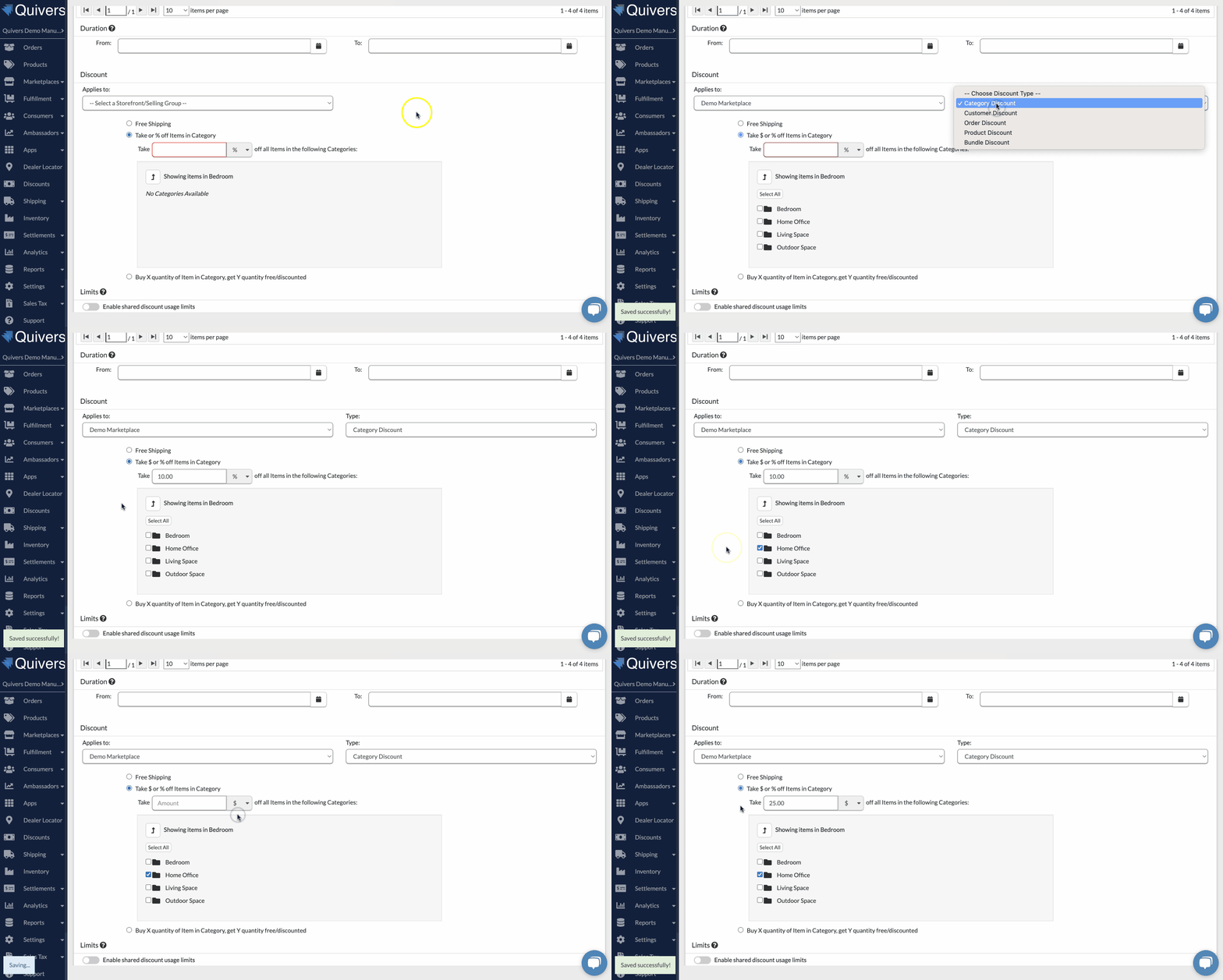
After selecting Category as the Discount Type and choosing your Storefront, choose one of the following configurations.
Offer Free Shipping on a Category
- Select the Category (or categories) that should receive free shipping.
Take a Dollar Amount or Percentage Off a Category
- Enter the Take Off amount.
- Choose whether it's a % or $ discount.
- Choose the Category or Categories the discount applies to.
Set a "Buy X, Get Y Free" Offer
- Choose your Buy Quantity.
- Choose the Category(s) the discount applies to.
- Choose your Get Quantity.
- Choose whether the free item(s) must be of the same product, or can be any of the selected products.
- Use the toggle to select "of the same item" or "of any of the selected products."
Note: Is Multiplicative — If checked, a customer can receive multiple instances of this discount in one order. For example, with a Buy 1 Get 1 offer, a customer who buys 5 qualifying items can get 5 free. If left unchecked, only one item is free regardless of how many the customer buys.
Frequently Asked Questions
Q: What's the difference between a Category Discount and a Product Discount?
A: A Category Discount triggers based on a product's assigned category, so it automatically covers every current and future product in that category. A Product Discount is scoped to specific, individually-selected products instead — see How to Create a Product Discount.
Q: Can I combine free shipping with a percentage discount on the same category?
A: Free shipping and %/$ off are separate configurations. If you need both, create two discounts for the same category and use the Limits settings (described in How to Create a Discount) to control whether they can stack.