
In This Article
- Overview
- Before You Start
- Install the App in BigCommerce
- Set Up Your Storefront Channels
- Configure the App in the Quivers Admin Panel
- Adding the App from the Quivers Admin Panel
- What Syncs Between BigCommerce and Quivers
- Place a Test Order
- Uninstall or Reinstall the App
- Frequently Asked Questions
Overview
The Quivers app for BigCommerce connects your BigCommerce store to Quivers so orders, products, inventory, and fulfillment updates move between the two platforms automatically. Once it's connected, you can use:
- Ship-from-Store: Orders placed in your BigCommerce store sync to Quivers, where you can offer them to your connected Retailers for local fulfillment.
- Inventory Syncing: Stock positions from your warehouses and Retailers sync back to BigCommerce, so you can sell against aggregated inventory and avoid out-of-stocks.
- Quivers Pay: A credit-card-based, fully managed payment processing service at checkout. Orders paid with Quivers Pay are covered by Quivers Fraud Protection, and Retailers who fulfill on your behalf are paid more quickly.
- Quivers Tax: Quivers' tax calculation, applied directly at BigCommerce checkout.
- Buy Online, Pick Up In-Store (BOPIS): In-Store Pickup through the companion Quivers In-Store Pickup app. See Buy Online, Pick Up In Store – BigCommerce for that setup.
Note: The app supports BigCommerce Multi-Storefront. A single BigCommerce store can run several storefronts (BigCommerce calls these channels), and each channel can be mapped to its own Quivers Storefront, currency, and order prefix. You can also connect more than one BigCommerce store to the same Quivers app.
A few terms come up throughout this article:
|
Term |
What It Means |
|---|---|
|
BigCommerce store |
Your overall BigCommerce store instance, identified by its Store Hash. |
|
Channel |
A customer-facing storefront within a BigCommerce store, with its own domain and currency. With Multi-Storefront, one store can have several channels. |
|
Quivers Storefront |
The storefront in Quivers that a BigCommerce channel's orders are assigned to. |
|
Store Hash |
BigCommerce's unique identifier for your store, shown on the Stores tab in Quivers. |
|
Order Prefix |
A unique prefix you assign to each channel so its orders are easy to identify in Quivers. |
Pro Tip: After the app is added in Quivers, the Setup Guide tab on the app's page summarizes these features and links back to this article.
Before You Start
Make sure you have the following in place:
- A Quivers Seller business, with the Quivers Storefront(s) you'll map your BigCommerce channels to. Contact support@quivers.com if a storefront you need hasn't been set up yet.
- Owner or admin access to your BigCommerce store, so you can install apps and storefront components.
- Your Quivers login. You'll sign in and select your Quivers business during installation.
Note: Already using an earlier version of the Quivers app? To use Multi-Storefront and the current app features, uninstall the app in BigCommerce, remove it from your Quivers Admin Panel, then reinstall and reconfigure it using this article. If you also use the Quivers In-Store Pickup app, uninstall and reinstall it too. BigCommerce may show an Update option for the app. Don't use it: a full uninstall and reinstall is required. See Uninstall or Reinstall the App.
Install the App in BigCommerce
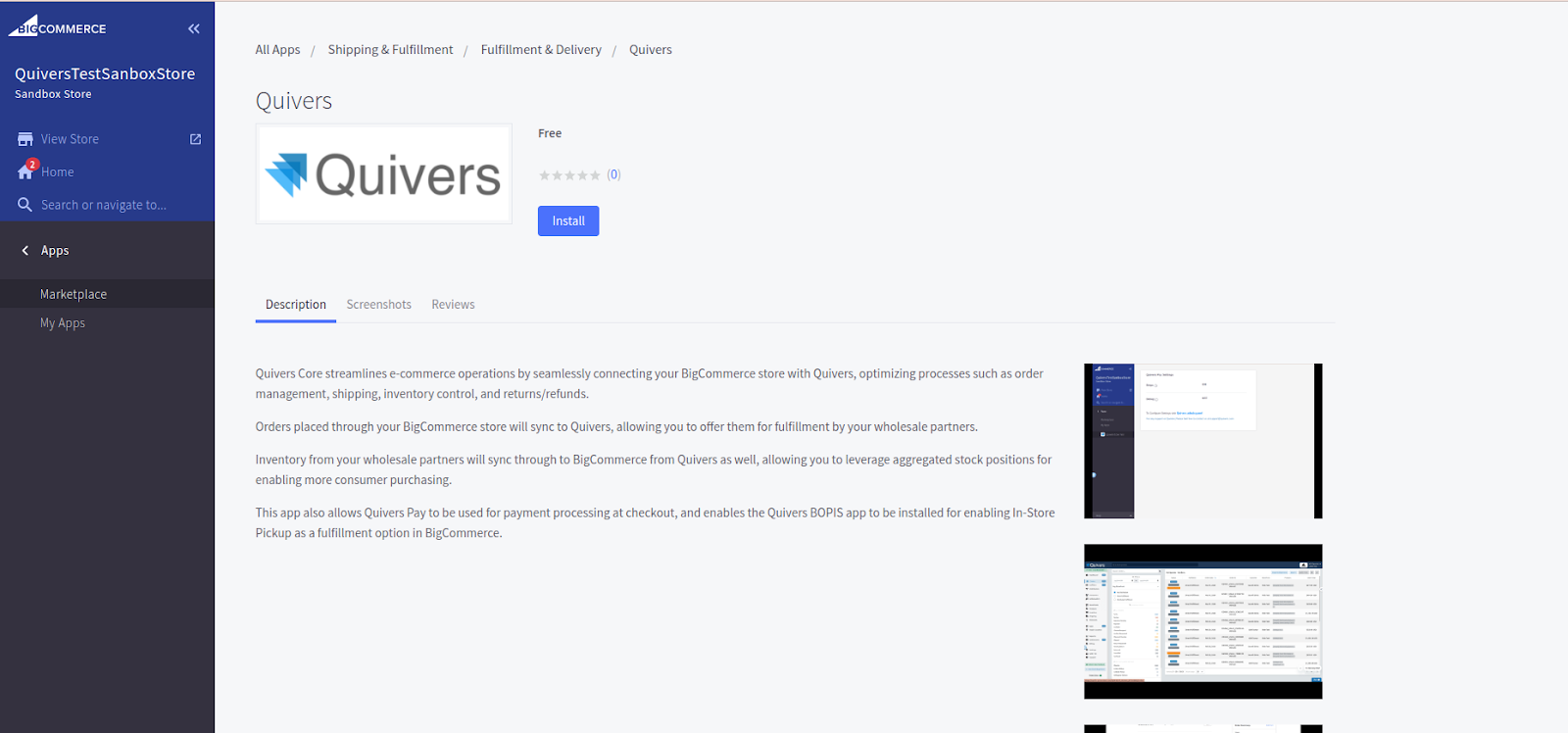
1. Open the Quivers app listing. In your BigCommerce admin, go to the Quivers app on the BigCommerce App Marketplace and click Install.
2. Accept the terms and confirm. Review the permissions the app requests, check the box to acknowledge the terms and conditions, then click Confirm.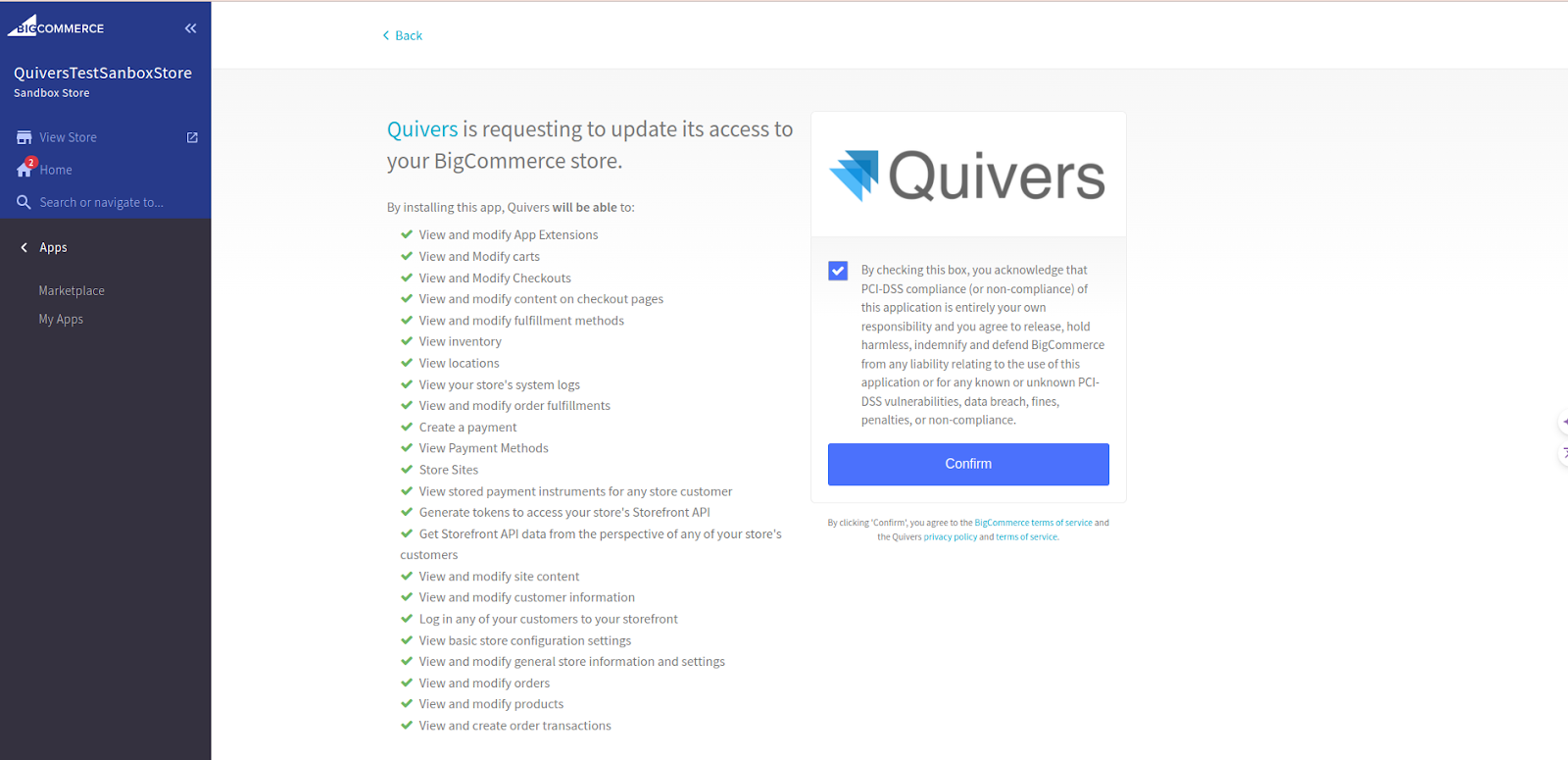
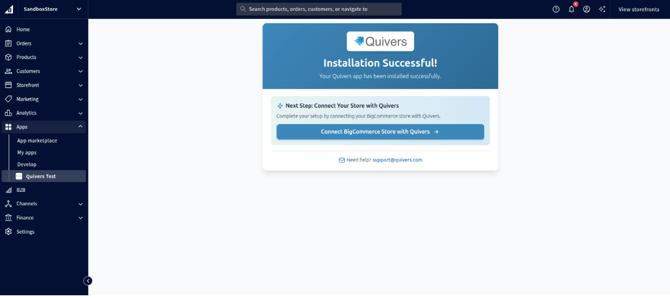
3. Connect your store with Quivers. On the Installation Successful! screen, click Connect BigCommerce Store with Quivers.
4. Choose your Quivers business. Sign in to Quivers if prompted, then select the business you want to connect. Quivers then processes your store. Don't press Back, reload, or close the window until it finishes. You'll be returned to the app in BigCommerce when processing is complete.
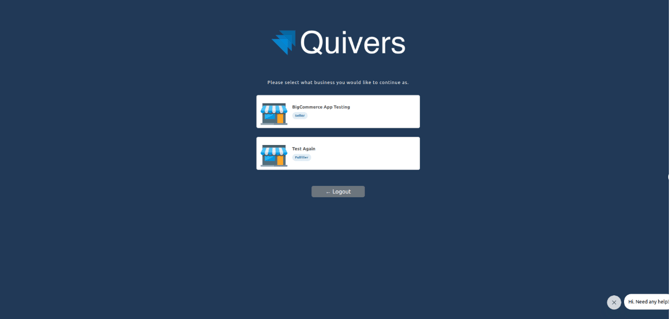
Note: If you have access to more than one Quivers business, each one is labeled with its role. Choose the business labeled Seller. Fulfiller is Quivers' platform term for a Retailer business, which isn't used for this app.
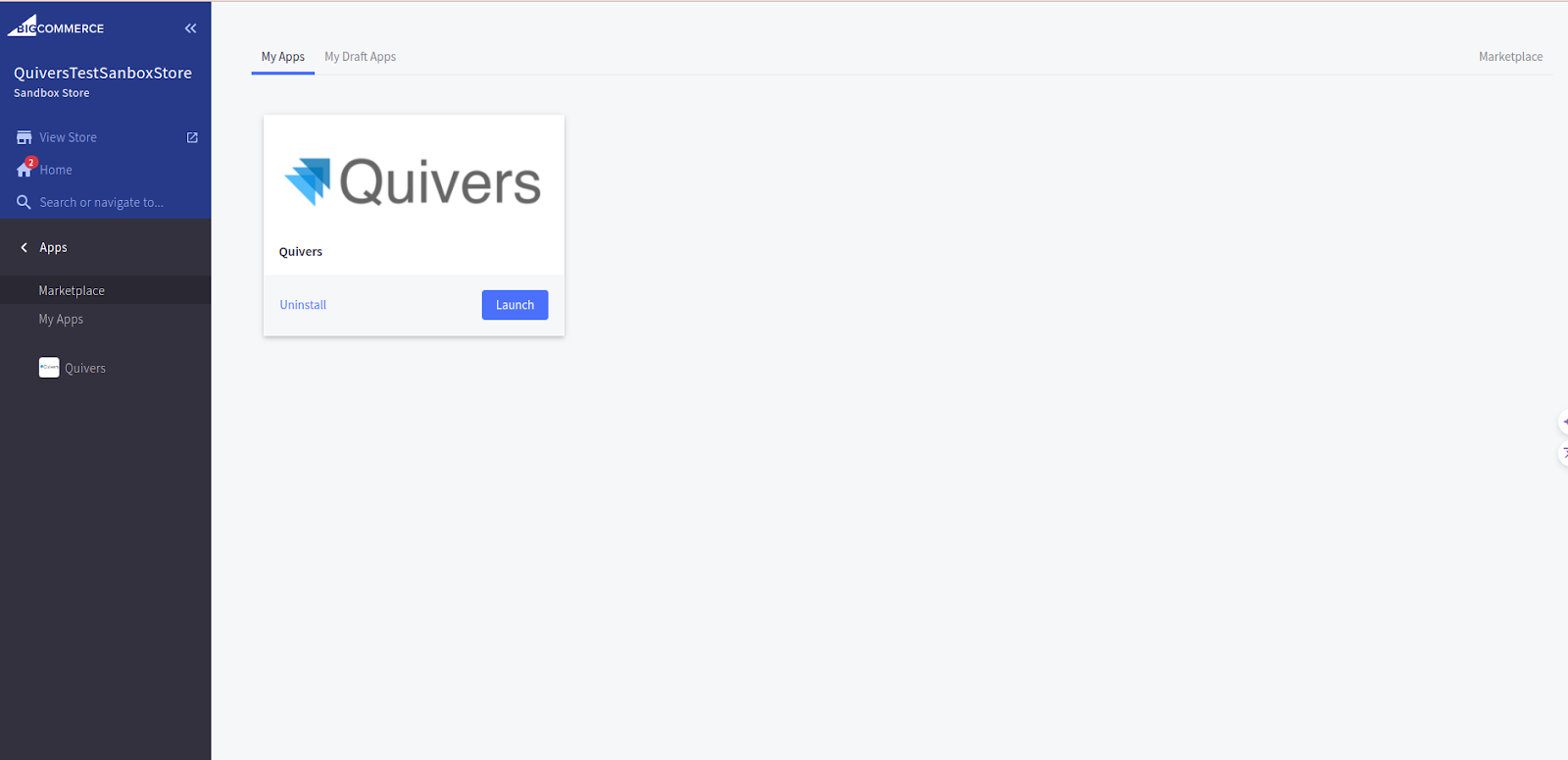
5. Open the app. If you aren't taken there automatically, go to Apps > My Apps in BigCommerce and click Launch on the Quivers app. This opens the Quivers App Settings page, covered in the next section.
Set Up Your Storefront Channels
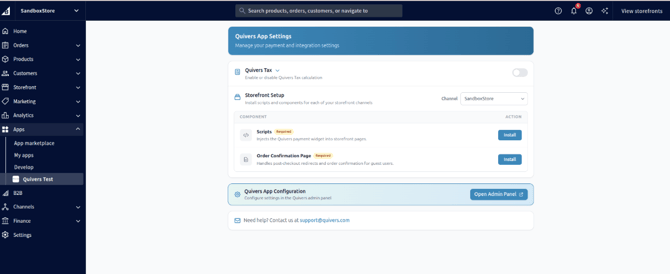
The Quivers App Settings page in BigCommerce is where you install the Quivers components on each channel. Complete these steps for every channel you want connected to Quivers.
1. Select a channel. Under Storefront Setup, choose the channel from the Channel dropdown.
2. Install the Scripts. Next to Scripts, click Install. Scripts are required. They add the Quivers payment widget to your storefront pages.
3. Install the Order Confirmation Page. Next to Order Confirmation Page, click Install. This is also required. It handles post-checkout redirects and order confirmation for guest shoppers.
4. Enable Quivers Pay. Once the Scripts are installed, a Quivers Pay row appears. Toggle it to Enabled to offer Quivers Pay as a payment gateway on this channel.
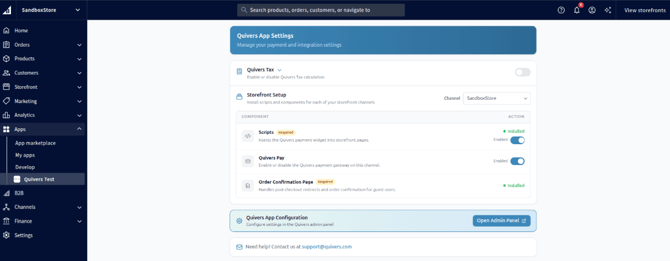
5. Turn on Quivers Tax (optional). Toggle Quivers Tax on to use Quivers' tax calculation at checkout.
6. Repeat for each channel. Select the next channel from the Channel dropdown and repeat steps 2 through 4.
Note: Scripts, the Order Confirmation Page, and Quivers Pay are set separately for each channel. Both required components need to show Installed on every channel you connect to Quivers.
Configure the App in the Quivers Admin Panel
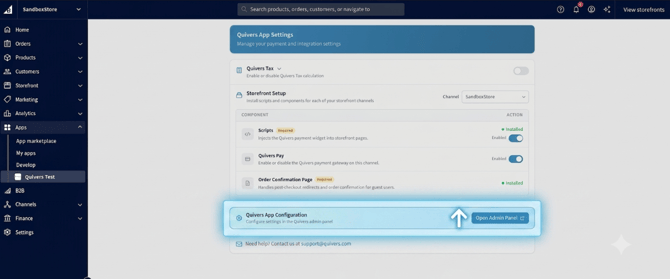
1. Open the Admin Panel. On the Quivers App Settings page in BigCommerce, click Open Admin Panel under Quivers App Configuration. This opens your BigCommerce app in the Quivers Admin Panel, with your store already connected.
2. Start the app. Under Actions, click Start App. Until you do, App Status shows that the app isn't running (paused or awaiting configuration) and it won't process your store's data.
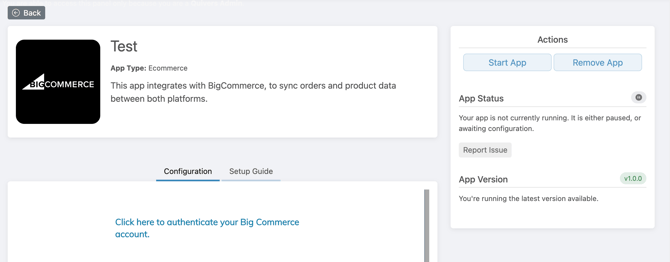
3. Work through the six configuration tabs. On the Configuration tab, step through Stores, Stores Configuration, Quivers Pay, BOPIS, Flow Settings, and Customization using Next and Back, then click Save on the last tab. Each tab is described below.
Best Practice: Saving Stores Configuration and Flow Settings starts the initial sync of your BigCommerce product catalog to Quivers. Map every channel to the right Quivers Storefront before you save, so products land in the right place the first time.
Stores
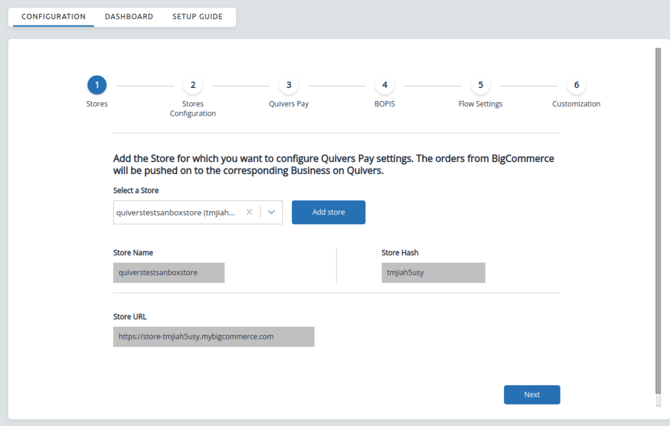
The Stores tab shows the BigCommerce store(s) connected to this app. Use Select a Store to switch between them. The selected store's Store Name, Store Hash, and Store URL are shown below. To connect another BigCommerce store to the same app, click Add store.
Stores Configuration
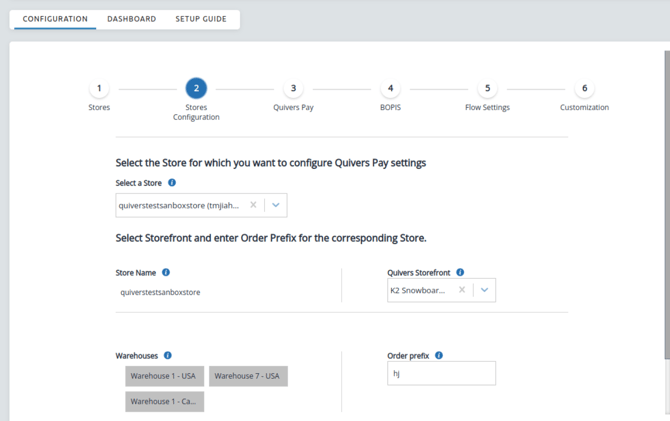
On Stores Configuration, map each channel to a Quivers Storefront and enter a unique Order Prefix. Select the store first, then complete each channel's row:
|
Column |
What to Do |
|---|---|
|
Channel |
The BigCommerce channel (storefront). One row appears per channel in the selected store. |
|
Currency |
The channel's currency, shown automatically from BigCommerce. |
|
Quivers Storefront |
Select the Quivers Storefront this channel's orders should be assigned to. |
|
Warehouses |
The warehouses linked to the selected Quivers Storefront. These fill in automatically. |
|
Order Prefix |
Enter a prefix unique to this channel (for example, #ABC1). |
Quivers Pay
Choose a store from Select a Store and a channel from Select a Channel, then set the Configuration Settings for that channel:
- Stripe: Turn on to enable Stripe payment methods through Quivers Pay on this channel.
- Debug: Turns on debug mode for troubleshooting. Leave this off unless Quivers Support asks you to turn it on.
Repeat for each channel that uses Quivers Pay.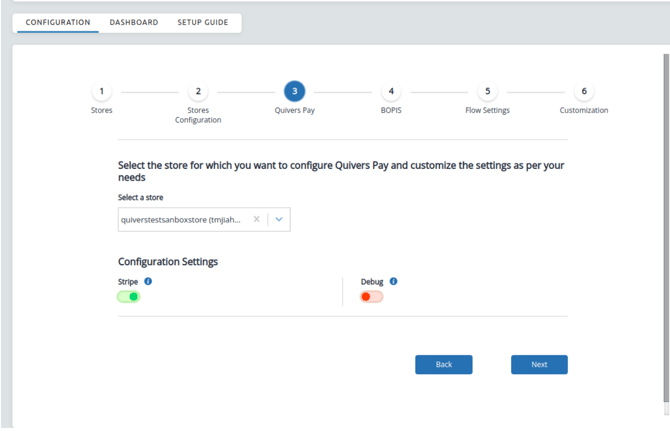
BOPIS
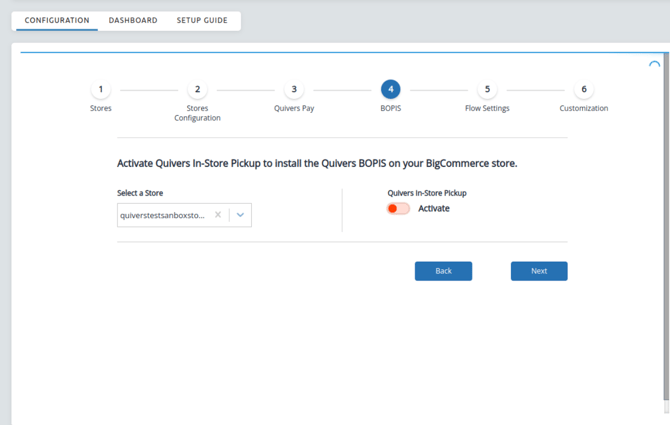
The BOPIS tab activates Quivers In-Store Pickup for a store. It only applies if you've also installed the separate Quivers In-Store Pickup app. See Buy Online, Pick Up In Store – BigCommerce for the full setup. If you aren't offering In-Store Pickup, click Next to continue.
Flow Settings
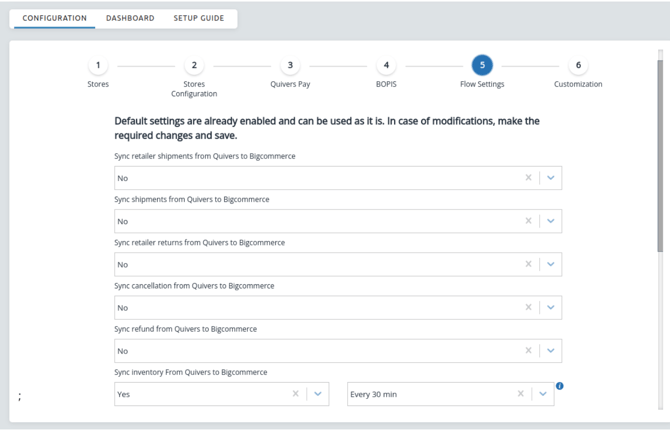
Flow Settings control which updates sync from Quivers back to BigCommerce. The defaults are already enabled and work for most Sellers, so only change a setting if you need different behavior.
|
Setting |
What It Controls |
|---|---|
|
Sync retailer shipments from Quivers to Bigcommerce |
Sends shipments your Retailers create in Quivers to the BigCommerce order. |
|
Sync shipments from Quivers to Bigcommerce |
Sends other shipments created in Quivers to the BigCommerce order. |
|
Sync retailer returns from Quivers to Bigcommerce |
Sends returns processed by your Retailers to BigCommerce. |
|
Sync cancellation from Quivers to Bigcommerce |
Sends item cancellations made in Quivers to BigCommerce. |
|
Sync refund from Quivers to Bigcommerce |
Sends refunds issued in Quivers to BigCommerce. |
|
Sync inventory From Quivers to Bigcommerce |
Sends aggregated inventory to BigCommerce. Use the second dropdown to set how often it syncs (for example, Every 30 min). |
Customization
Customization turns on custom behavior that Quivers has set up for your business at your request. If it's been enabled for you, you can turn it off anytime with the Activate Customization toggle. Click Save to finish.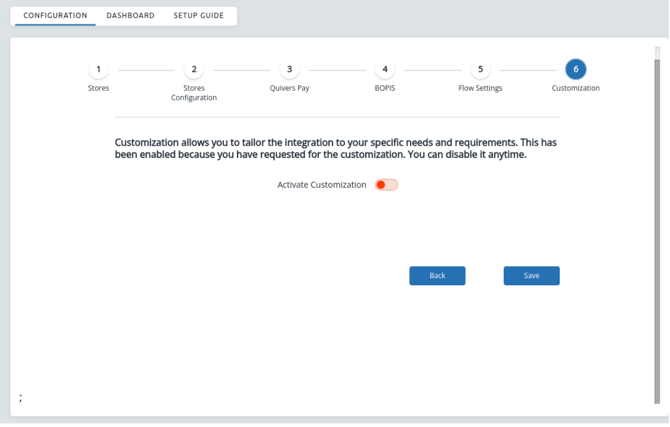
Once these settings are saved, your store is ready to use Quivers Pay and the rest of the app's features.
Adding the App from the Quivers Admin Panel
You can also start the setup from Quivers instead of BigCommerce.
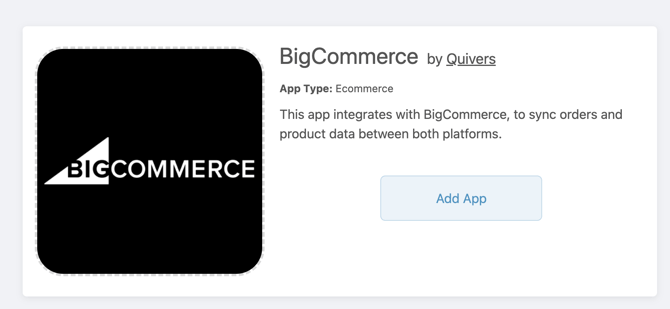
1. Find the BigCommerce app. In the Quivers Admin Panel, go to Apps and find BigCommerce by Quivers. Click Add App.
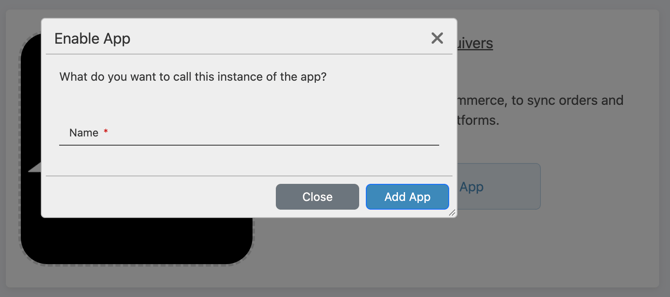
2. Name the app. In the Enable App dialog, enter a Name for this instance of the app (for example, your BigCommerce store's name), then click Add App.
3. Authenticate your BigCommerce account. On the app's Configuration tab, click Click here to authenticate your Big Commerce account. Then complete Install the App in BigCommerce, Set Up Your Storefront Channels, and Configure the App in the Quivers Admin Panel, above.
What Syncs Between BigCommerce and Quivers
|
Data |
Direction |
How It Works |
|---|---|---|
|
Orders |
BigCommerce to Quivers |
New orders and order updates sync automatically as they happen and typically appear in Quivers within 3 to 5 minutes. Each order is assigned to the Quivers Storefront mapped to its channel. |
|
Products and prices |
BigCommerce to Quivers |
Your full catalog syncs when you save Stores Configuration and Flow Settings. After that, new products and product updates, including sale prices, sync automatically. |
|
Inventory |
Quivers to BigCommerce |
Aggregated stock from the warehouses and Retailers linked to the storefront syncs to BigCommerce on the frequency set in Flow Settings. |
|
Shipments |
Both directions |
Shipments created in Quivers sync to BigCommerce per Flow Settings. If you mark an order Shipped in BigCommerce without adding a shipment, Quivers marks it shipped using the Other method, with no tracking. |
|
Returns, cancellations, and refunds |
Both directions |
Returns, cancellations, and refunds made in Quivers sync to BigCommerce per Flow Settings. If you fully refund an item in BigCommerce before it ships, Quivers treats it as a cancellation. |
|
Tax |
At checkout |
With Quivers Tax turned on, BigCommerce uses Quivers' tax calculation at checkout. |
|
Affiliate IDs |
BigCommerce to Quivers |
When a shopper arrives through an affiliate link, the affiliate ID is captured on your storefront and passed to Quivers with the order. |
Note: Inventory sent to BigCommerce is the total across the warehouses and Retailer locations linked to the Quivers Storefront. Any single location with a negative stock position counts as 0, so one oversold Retailer can't make an item unavailable when other locations can fill it. A warehouse below its minimum stock threshold also counts as 0.
Note: BigCommerce doesn't send an update when a variant's image is changed, so variant image changes don't sync to Quivers. Contact Support if a variant image in Quivers needs to be updated.
To manage synced orders in Quivers, see Orders in Quivers.
Place a Test Order
1. Add a product to the cart on your BigCommerce storefront.
2. Click Proceed to Checkout and fill in the customer email, shipping address, and billing address.
3. Choose a payment method. The Quivers payment methods you enabled for that channel appear at checkout, along with any other payment methods you've set up in BigCommerce.
4. Place the order and check Quivers. Open Orders in Quivers and click the order. It appears within 3 to 5 minutes.
Best Practice: Cancel test orders in Quivers as soon as you're done testing, to keep reporting and settlements accurate and avoid unnecessary processing fees.
Pro Tip: Want to test without placing live orders? Use the Quivers Demo app. See Install the Quivers Demo App for BigCommerce.
Uninstall or Reinstall the App
1. Uninstall the app in BigCommerce. Go to Apps > My Apps, find the Quivers app, and click Uninstall.
2. Open the app in Quivers. In the Quivers Admin Panel, go to Apps and click your BigCommerce app to open its configuration.
3. Remove the app. Under Actions, click Remove App.
To reinstall, start again from Install the App in BigCommerce, then set up your channels and configure the app in Quivers.
Note: If BigCommerce shows an Update option for the Quivers app, don't use it. Uninstall and reinstall instead. If you also use the Quivers In-Store Pickup app, uninstall and reinstall both apps together.
Frequently Asked Questions
Do I need a separate app for each of my BigCommerce storefronts?
No. One Quivers app supports BigCommerce Multi-Storefront: each channel in your store is mapped to its own Quivers Storefront on the Stores Configuration tab. You can also connect additional BigCommerce stores to the same app with Add store on the Stores tab.
Why do I have to install the Scripts and Order Confirmation Page more than once?
Both components are installed per channel. Select each channel from the Channel dropdown on the Quivers App Settings page and install them for every channel you connect to Quivers.
I was using the Quivers app before Multi-Storefront support. Do I need to do anything?
Yes. Uninstall the app in BigCommerce, remove it in the Quivers Admin Panel, then reinstall and reconfigure it. Do the same for the Quivers In-Store Pickup app if you use it.
BigCommerce is showing an Update option for the app. Should I use it?
No. A full uninstall and reinstall is required. See Uninstall or Reinstall the App.
Which business should I pick on the business selection screen?
Your Seller business. Businesses labeled Fulfiller are Retailer accounts. Fulfiller is Quivers' platform term for a Retailer.
The app says it isn't running. What do I do?
Open the app in the Quivers Admin Panel and click Start App under Actions. App Status shows the app as not running until it's started.
How long does it take for a BigCommerce order to show up in Quivers?
Orders typically appear within 3 to 5 minutes of being placed.
My products aren't showing up in Quivers. What should I check?
The initial catalog sync starts when you save the Stores Configuration and Flow Settings tabs, so make sure both have been saved with every channel mapped. If you need your full catalog re-synced later, contact Support.
Why doesn't the stock in BigCommerce match one of my warehouses?
BigCommerce receives the total across all warehouses and Retailer locations linked to the Quivers Storefront. Negative positions and warehouses below their minimum stock threshold count as 0 in that total. The sync frequency is set in Flow Settings.
Which payment methods do shoppers see at checkout?
The Quivers payment methods you enabled for that channel (Quivers Pay in Quivers App Settings, and Stripe on the Quivers Pay tab), plus any other payment methods you've set up in BigCommerce.
Are there fees for using Quivers Pay?
Quivers applies payment-processing and fulfillment fees, and rates can vary. Contact support@quivers.com for your specific rate.
What does Quivers Tax do?
It has BigCommerce use Quivers' tax calculation at checkout, based on your sales tax settings in Quivers. Turn it on or off with the Quivers Tax toggle on the Quivers App Settings page.
I marked an order Shipped in BigCommerce without adding tracking. What happens in Quivers?
Quivers marks the order shipped using the Other shipping method, with no tracking number.
I refunded an item in BigCommerce before it shipped. What happens in Quivers?
A full refund of an unshipped item is treated as a cancellation in Quivers, and the order's shipping fee is reallocated across the remaining items.
I changed a variant image in BigCommerce, but Quivers still shows the old one. Why?
BigCommerce doesn't send an update when variant images change, so those changes can't sync. Contact Support if a variant image needs updating in Quivers.
Do I need to set up the BOPIS tab?
Only if you're offering In-Store Pickup with the Quivers In-Store Pickup app. Otherwise, click Next to skip it. See Buy Online, Pick Up In Store – BigCommerce.
What are the Debug and Customization settings for?
Debug (on the Quivers Pay tab) is for troubleshooting and should stay off unless Support asks you to turn it on. Customization turns on custom behavior Quivers has set up for your business at your request, and you can turn it off anytime.
What's the Order Prefix for?
It's a unique prefix assigned to each channel on the Stores Configuration tab, so you can tell which channel an order came from.
Can I start the setup from Quivers instead of BigCommerce?
Yes. Go to Apps in the Quivers Admin Panel, click Add App on BigCommerce by Quivers, name the app, then click the link on the Configuration tab to authenticate your BigCommerce account.
Can I test the integration before going live?
Yes. Place a test order and cancel it afterward, or use the Quivers Demo app. See Install the Quivers Demo App for BigCommerce.
How do I remove the app?
Uninstall it from Apps > My Apps in BigCommerce, then open the app in the Quivers Admin Panel and click Remove App under Actions.