Skip to content
English
  • There are no suggestions because the search field is empty.

Adjusting Tax & Item Totals on an Order

This article explains how Sellers can lower an item’s price or shipping amount, or correct the tax rate on an order, directly from the Order Details Panel in Quivers.

In This Article

Overview

Quivers gives Sellers two ways to correct the amounts on an order without cancelling or returning items. Both live in the Actions dropdown on the Order Details Panel:

  • Adjust Item Totals – lower an item’s total amount and/or shipping amount before the item ships. For example, if you issued a partial refund for an item on your e-commerce platform before shipping it, use Adjust Item Totals to reflect the new amounts in Quivers.
  • Adjust Taxes – correct the tax rate on selected items if you don’t believe the correct amount of tax was collected.

Neither adjustment can charge the customer more than they were originally charged at checkout.

Which Adjustment Do I Need?

Adjust Item Totals

Adjust Taxes

What it changes

The total amount and shipping amount for the selected item(s)

The tax rate for the selected item(s)

When it’s available

Claimed items that haven’t shipped yet

Items claimed by your business, or not yet claimed

Limits

Amounts can only be lowered; the total amount can’t go below any applied discounts

The new rate can’t be higher than the order’s Authorized Rate

What else updates

Tax and fees for the item are recalculated automatically

Lowering the rate refunds the difference to the customer

Adjusting Item Totals

Use Adjust Item Totals to lower the total amount or shipping amount for one or more claimed items before they ship.

How to Adjust Item Totals

  1. Click Orders in the left menu and open the order.
  2. On the Order Details Panel, select the checkbox next to the claimed item(s) you want to adjust.
  3. Click Actions, then select Adjust Item Totals.
  4. In the Adjust Totals for Item(s) window, enter the new Total Amount and/or Shipping Amount for each item.
  5. Click Adjust Item Totals to confirm, or Close to cancel without making changes.

Screenshot 2026-10-01 at 4.18.31 PMScreenshot 2026-10-01 at 4.18.37 PM

Note: The Total Amount field shows the item’s price before discounts, and can’t be set lower than the discounts already applied to that item. Hover over the info icon next to Total Amount to see the item’s current discount total.

Note: If an item’s shipping is $0.00, the Shipping Amount field is greyed out and can’t be changed.

What Happens After You Adjust Item Totals

  • Tax and fees are recalculated automatically for the adjusted item, based on the new amounts.
  • The customer’s payment is updated. If the order’s payment has only been authorized, Quivers reduces the amount it will capture. If the payment has already been captured, Quivers refunds the difference to the customer.
  • The change is logged in the order’s Timeline as a Price Adjusted event, showing the original and new amounts.
  • The customer is emailed if the Item Price Changed notification is turned on for the storefront — see Customer Notifications, below.

Note: Adjust Item Totals is only available before an item ships. To refund a customer for an item that has already shipped, use Refund without Return instead — see Returns, Refunds, & Exchanges.

Pro Tip: Leave a note in the order’s Timeline explaining why you adjusted the item, so anyone reviewing the order later has the context.

Adjusting Tax

Use Adjust Taxes to correct the tax rate on selected items if you don’t believe the correct amount of tax was collected.

How to Adjust Tax

  1. Click Orders in the left menu and open the order.
  2. On the Order Details Panel, select the checkbox next to the item(s) you want to adjust.
  3. Click Actions, then select Adjust Taxes.
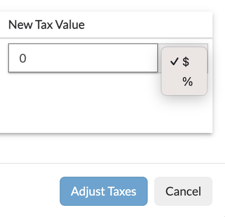
  4. In the Adjust Tax Rate for Item(s) window, review the Authorized Rate and Current Tax Rate, then enter the New Tax Rate.
  5. Click Adjust Tax Rate to confirm, or Close to cancel without making changes.

Things to Know About Tax Adjustments

  • The new rate can’t be higher than the Authorized Rate. The Authorized Rate is the tax rate authorized at checkout, and it’s the ceiling for any adjustment.
  • Lowering the rate refunds the customer for the difference automatically — there’s no separate refund step.
  • The new rate applies to every item you selected. To adjust only certain items, select just those items before opening Adjust Taxes.
  • You can only adjust tax on items that belong to your business — items claimed by your business, or not yet claimed. If your selection includes an item claimed by another business, Adjust Taxes isn’t available.

Note: By adjusting taxes, you waive the right to receive any sales tax adjustment credit for that order in the future. This warning also appears in the Adjust Tax Rate for Item(s) window.

Pro Tip: Quivers uses TaxJar to calculate sales tax. To double-check a rate before adjusting it, use TaxJar’s online sales tax calculator.

Customer Notifications

Quivers can email your customer when an item’s price is adjusted. To turn this on or off, open the storefront’s Notifications tab and find the Item Price Changed toggle under Item(s) Notifications.

Best Practice: Check this setting on each storefront before you start adjusting item totals, so you know whether your customers will receive an email about the change.

Frequently Asked Questions

What’s the difference between Adjust Item Totals and Adjust Taxes?

Adjust Item Totals lowers an item’s total amount or shipping amount before the item ships, and recalculates tax and fees automatically. Adjust Taxes changes only the tax rate on the selected items.

Can I increase an item’s price or shipping amount?

No. Both the Total Amount and Shipping Amount can only be lowered from their current amounts.

Can I raise the tax rate on an order?

Not above the Authorized Rate. The Authorized Rate shown in the Adjust Tax Rate for Item(s) window is the highest rate you can set.

Why can’t I lower the Total Amount any further?

The Total Amount can’t be set below the discounts already applied to that item. Hover over the info icon next to Total Amount to see the item’s current discount total.

Why is the Shipping Amount field greyed out?

The item’s shipping is already $0.00, so there’s nothing to lower.

I don’t see Adjust Item Totals in the Actions dropdown. Why?

Adjust Item Totals is only available for claimed items that haven’t shipped. If the item is unclaimed or already shipped, the option won’t appear.

Can I adjust item totals after an item has shipped?

No. For a shipped item, use Refund without Return to refund the customer — see Returns, Refunds, & Exchanges.

Does adjusting item totals refund the customer?

It depends on the payment. If the payment has only been authorized, Quivers reduces the amount it will capture. If the payment has already been captured, Quivers refunds the difference.

Are tax and fees updated when I adjust item totals?

Yes. Both are recalculated automatically based on the new amounts.

Can I adjust more than one item at a time?

Yes. Select each item you want to adjust before clicking Actions. Adjust Item Totals lists each selected item with its own fields; Adjust Taxes applies the same new rate to every selected item.

Does adjusting tax refund the customer?

Yes. Lowering the tax rate automatically refunds the customer for the difference.

Why isn’t Adjust Taxes available for some items?

You can only adjust tax on items that belong to your business — items claimed by your business or not yet claimed. If any selected item is claimed by another business, Adjust Taxes isn’t available. Select only your own items and try again.

What does the warning about sales tax adjustment credit mean?

Adjusting taxes on an order means you waive the right to receive any sales tax adjustment credit for that order in the future.

What does “This order did not require sales tax based on your Sales Tax Nexus(es)” mean?

Based on the sales tax nexuses set up for your business, no tax was required on this order, so the Current Tax Rate shows 0.00%.

How can I check whether the right tax rate was collected?

Quivers uses TaxJar to calculate sales tax. You can verify a rate using TaxJar’s online sales tax calculator.

Will my customer be notified when I adjust an item’s price?

Only if the Item Price Changed notification is turned on. You’ll find it under Item(s) Notifications on the storefront’s Notifications tab.

Where can I see a record of an adjustment?

In the order’s Timeline. Item total adjustments appear as a Price Adjusted event showing the original and new amounts.

For other order actions, see Orders in Quivers, Shipping an Order or Part of an Order, and Cancelling an Order or Items.

Need Help?

Our support team is here to help you get the most out of Quivers.

Email Support
support@quivers.com
We typically respond within 24 hours
Create a Ticket
Submit a support request →
Track your issue through to resolution